You are in BIOS on a fresh build, the OS installer is waiting on a USB stick, and the storage-mode dropdown is offering IDE, AHCI, and RAID. Or you opened the firmware on a machine you inherited, noticed it shipped in RAID mode with a single drive and no visible array, and now you are wondering whether someone made a mistake, and whether changing it will leave you staring at a blue screen.
The AHCI vs RAID mode question is worth getting right, but not for the reason most people think. The labels do not describe two universal, competing technologies, and on modern hardware the setting may affect SATA, NVMe through Intel VMD, or both. By the end of this guide, you will know what each mode presents to the operating system, which one to pick, and why changing a working controller mode can stop Windows from booting.
The Short Version
- RAID mode is not a universal ‘AHCI plus RAID’ switch. On many PCs it selects a vendor storage stack such as Intel RST or AMD RAIDXpert2, while some newer Intel systems route selected SATA and NVMe devices through VMD.
- A standard NVMe drive bypasses SATA and AHCI. However, an OEM ‘RAID On,’ RST, or VMD setting can still change how that NVMe drive is presented to Windows.
- For a fresh install with one SATA drive and no firmware RAID features, AHCI is usually the clean default. Keep the OEM default when the system already boots correctly or the vendor requires RST or VMD.
- Do not change the storage mode after Windows is installed without a backup and a driver-aware migration plan. A direct switch can trigger an INACCESSIBLE_BOOT_DEVICE error.
What Do the SATA Modes in BIOS Actually Do?
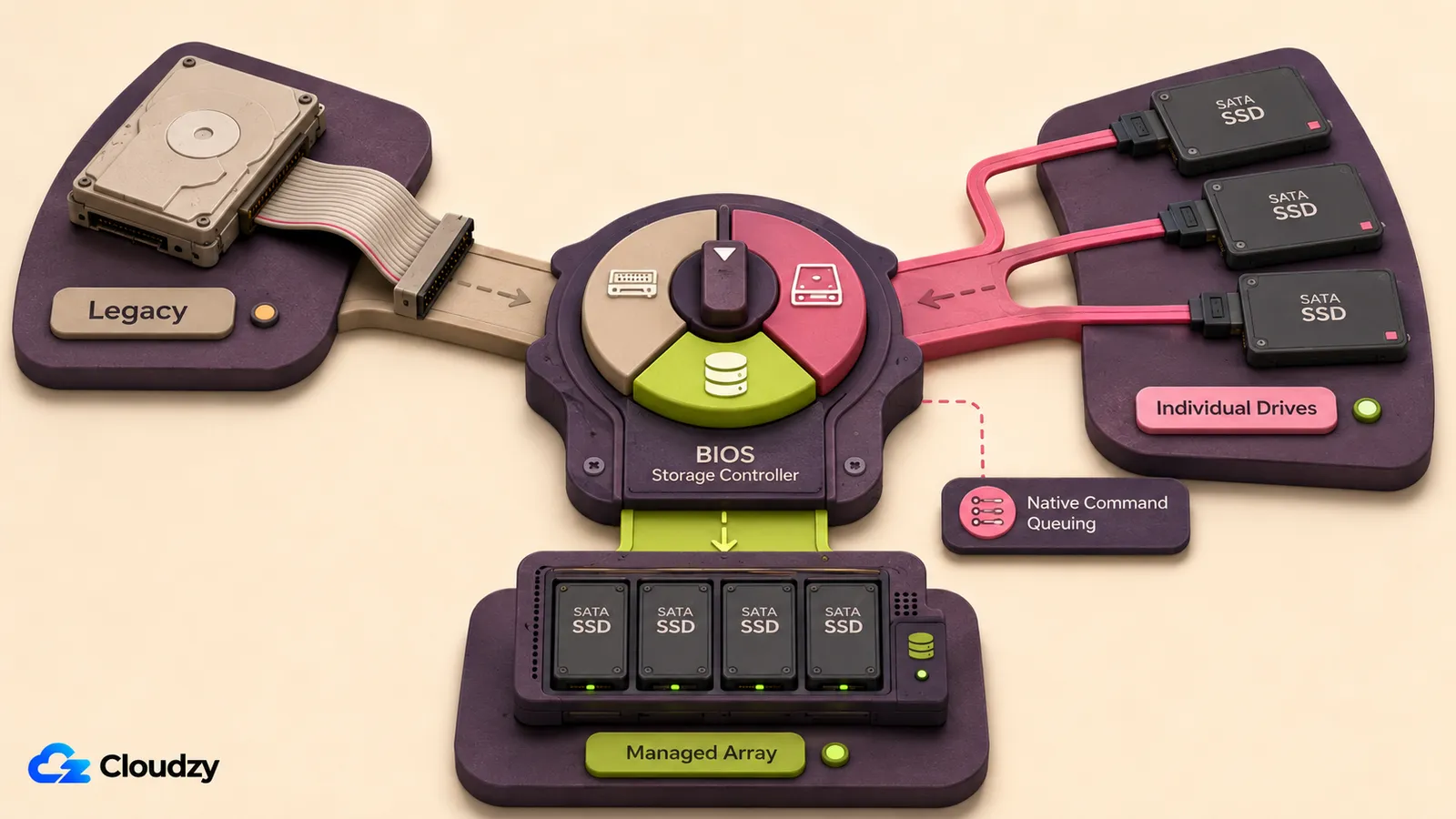
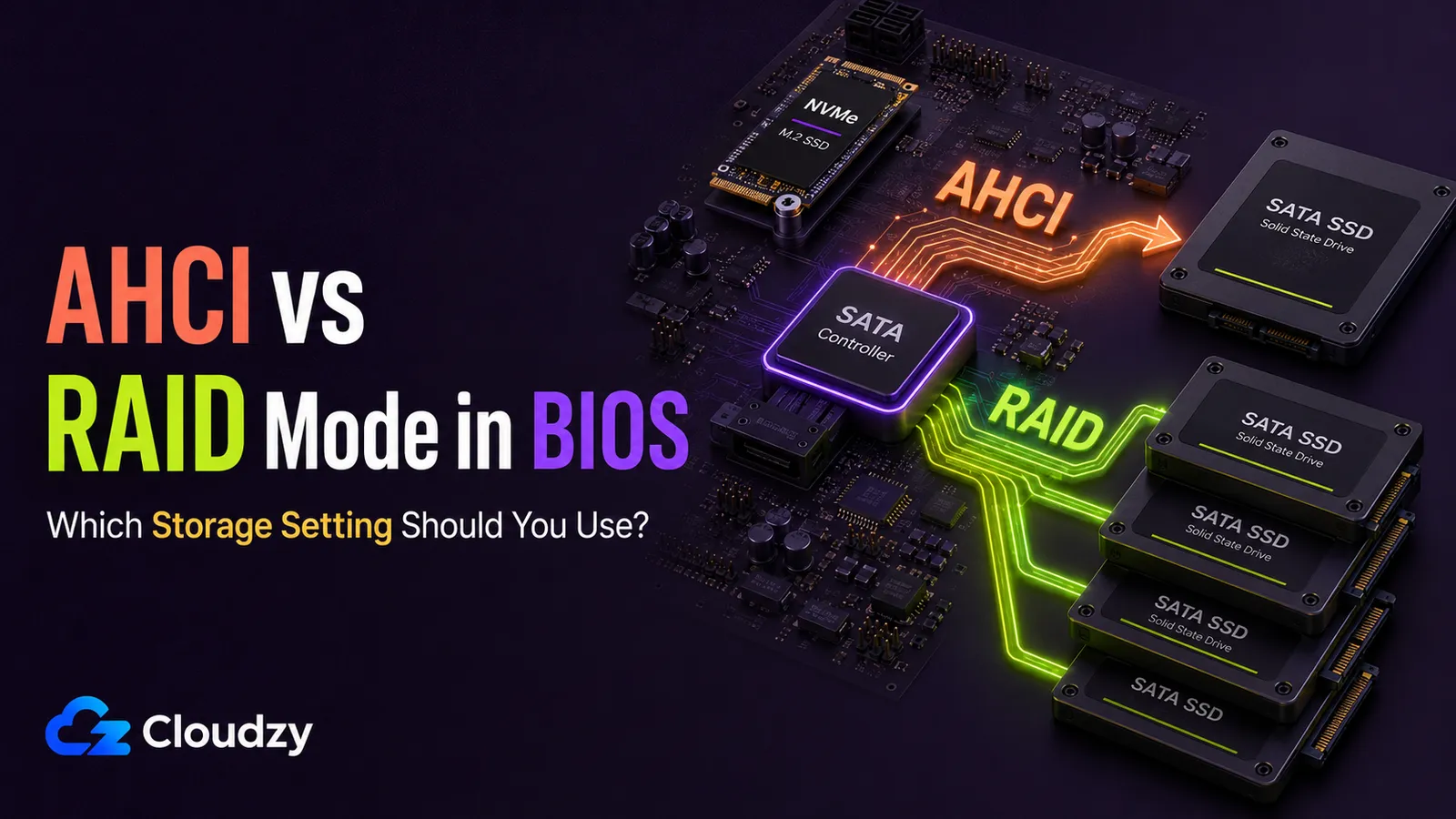
The storage-mode setting tells the motherboard how to present connected drives to the operating system. Options may include IDE, AHCI, RAID, RST, VMD, or a combined label such as SATA/NVMe Operation. It is a controller-level or remapping decision, not a property stored on an individual drive.
The selected mode determines which controller identity, feature set, and driver stack the operating system receives. The labels are not equivalent flavors of one interface, and their exact meaning varies by chipset and system vendor.
IDE mode emulates the behavior of old Parallel ATA hardware. It does not expose AHCI features such as Native Command Queuing (NCQ) or AHCI hot-plug support. Its remaining purpose is compatibility with operating systems from the Windows XP era that predate built-in AHCI drivers. Many current UEFI systems no longer offer it.
AHCI mode exposes the standards-based host interface defined by Intel’s AHCI 1.3.1 specification. It supports SATA capabilities such as NCQ, with up to 32 command slots per port, and hot-plug detection. Hot-swapping still depends on the port, device, driver, firmware, and physical hardware supporting it, so AHCI does not guarantee that every SATA connector is safe to unplug live.
RAID mode selects a vendor-managed storage path. On Intel systems that commonly means RST or VMD; AMD platforms may use RAIDXpert2. Depending on the hardware, the mode may manage SATA devices, remap selected NVMe devices, or both. Windows then uses the vendor’s controller driver rather than treating the controller as a plain AHCI device.
| Mode | What it does | NCQ + hot-swap | When you would use it |
|---|---|---|---|
| IDE (PATA) | Legacy PATA-compatible presentation | No AHCI features | Only for a pre-AHCI legacy OS |
| AHCI | Standards-based SATA host interface | Supported when the controller, device, and driver implement them | A normal SATA install without firmware RAID |
| RAID / RST / VMD | Vendor-managed storage path; may cover SATA and/or NVMe | Platform- and driver-dependent | Firmware RAID, RST/Optane/VMD, or an OEM default |
Key takeaway: AHCI is a defined SATA host interface. RAID, RST, and VMD labels select a vendor storage path whose scope depends on the platform.

Is RAID Mode an Alternative to AHCI, or Does It Include It?
Treat AHCI and BIOS RAID mode as alternative controller presentations, not a universal superset relationship. Some vendor RAID implementations retain SATA features such as NCQ and hot-plug, but Windows sees a different controller and loads a different driver stack. On newer Intel PCs, RAID On may also enable VMD and place selected SATA or NVMe devices behind Intel RST.
The ‘vs’ is therefore meaningful at the operating-system boundary. AHCI exposes a standards-based SATA controller, while RAID, RST, or VMD exposes a vendor-managed controller. The exact feature set depends on the motherboard and firmware, so check the system manual instead of assuming every RAID toggle behaves the same way.
Intel’s current RST guidance makes the driver boundary clear: the Intel RST driver is not compatible with AHCI mode, and the supported RST or RAID setting should be selected before Windows is installed. That does not prove RAID is ‘AHCI plus more’; it shows that the two settings present different driver paths to the operating system.
On a single drive, neither label guarantees better performance. Results depend on the controller, driver, firmware, power-management policy, and workload. Choose the mode for compatibility and required features, not because a generic benchmark claims one is always faster.
Key takeaway: with one drive, the practical difference is primarily the controller and driver stack, not a universal speed advantage.
Does the AHCI/RAID Setting Affect NVMe Drives?
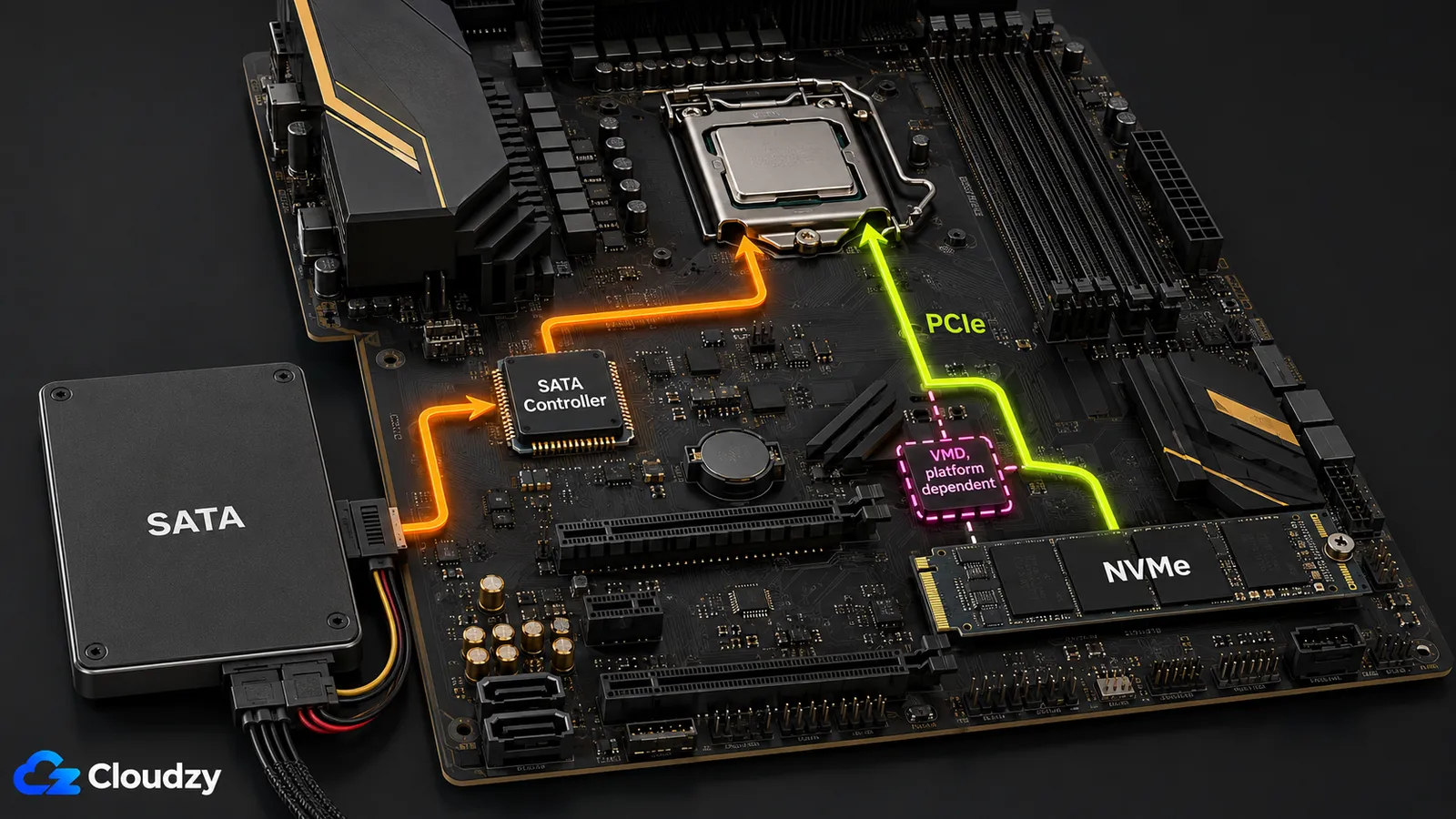
For a standard NVMe drive attached directly to PCIe, AHCI does not govern it. NVMe uses PCIe and its own command set, so a plain SATA AHCI setting does not determine the drive’s queueing model or performance.
On a typical desktop board without VMD or storage remapping, an M.2 NVMe drive uses PCIe lanes while the AHCI setting configures only the SATA controller. Those are separate data paths, so changing SATA from AHCI to another mode does not tune the NVMe protocol.
This distinction matters on systems with an M.2 NVMe boot drive. If the firmware exposes a plain AHCI setting only for SATA ports, that setting does not govern the NVMe drive. It still affects any SATA SSDs or hard drives connected to the board.
The important exception is Intel VMD and similar vendor remapping. Intel says RST driver versions 18.0 and later support VMD on capable Intel platforms, and firmware can assign SATA ports and PCIe or NVMe devices to the VMD controller. On such a machine, a menu labeled RAID On, RST, VMD, or SATA/NVMe Operation can change how an NVMe boot drive is presented. Follow the model-specific OEM documentation.
AHCI provides 32 command slots per SATA port, while the NVMe architecture supports many I/O queues with far deeper capacity. Actual operating-system and device limits are usually lower than the protocol maximums, but the designs target different storage generations.
Key takeaway: a plain SATA AHCI setting does not tune a direct-attached NVMe drive, but RST or VMD may still control how that drive is presented.
Which SATA Mode Should You Use?
For a fresh Windows install with one SATA drive and no planned firmware-assisted RAID, AHCI is usually the clean default. Choose RAID, RST, or VMD when you are building a firmware-assisted array, need a feature such as Intel RST or Optane management, or the OEM image and drivers expect that configuration. Reserve IDE for legacy compatibility. If NVMe is involved, read the system manual because the label may control VMD as well as SATA.
Fresh single-SATA-drive build → AHCI. It uses the standard SATA driver path and usually offers the broadest compatibility when no vendor RAID feature is required.
Firmware-assisted RAID, RST, VMD, or Optane → vendor RAID mode. Use the setting and preinstallation driver required by the platform. Windows Storage Spaces, Linux mdraid, and other software RAID solutions do not require BIOS RAID mode merely because they combine drives.
OEM system already in RAID On or VMD and booting correctly → I would leave it alone. Change it only for a specific compatibility reason and only after verifying the vendor’s migration procedure. Tidying a firmware label is not worth risking an unbootable system.
Legacy OS → IDE. This is rare and applies only when the operating system lacks AHCI support and the firmware still offers IDE compatibility mode.
Pro tip: Samsung Magician and RAID mode. Samsung says Magician does not officially support software RAID and may fail to detect an SSD behind a RAID or SCSI controller. For a single Samsung SATA SSD, AHCI with the Microsoft storage driver may improve tool compatibility, but do not switch a working system only for Magician. Confirm the drive model and migration plan first.
Key takeaway: AHCI is the usual fresh-install choice for one SATA drive; RAID, RST, or VMD should serve a specific feature or OEM storage path.
What Happens If You Change SATA Mode After Installing the OS?
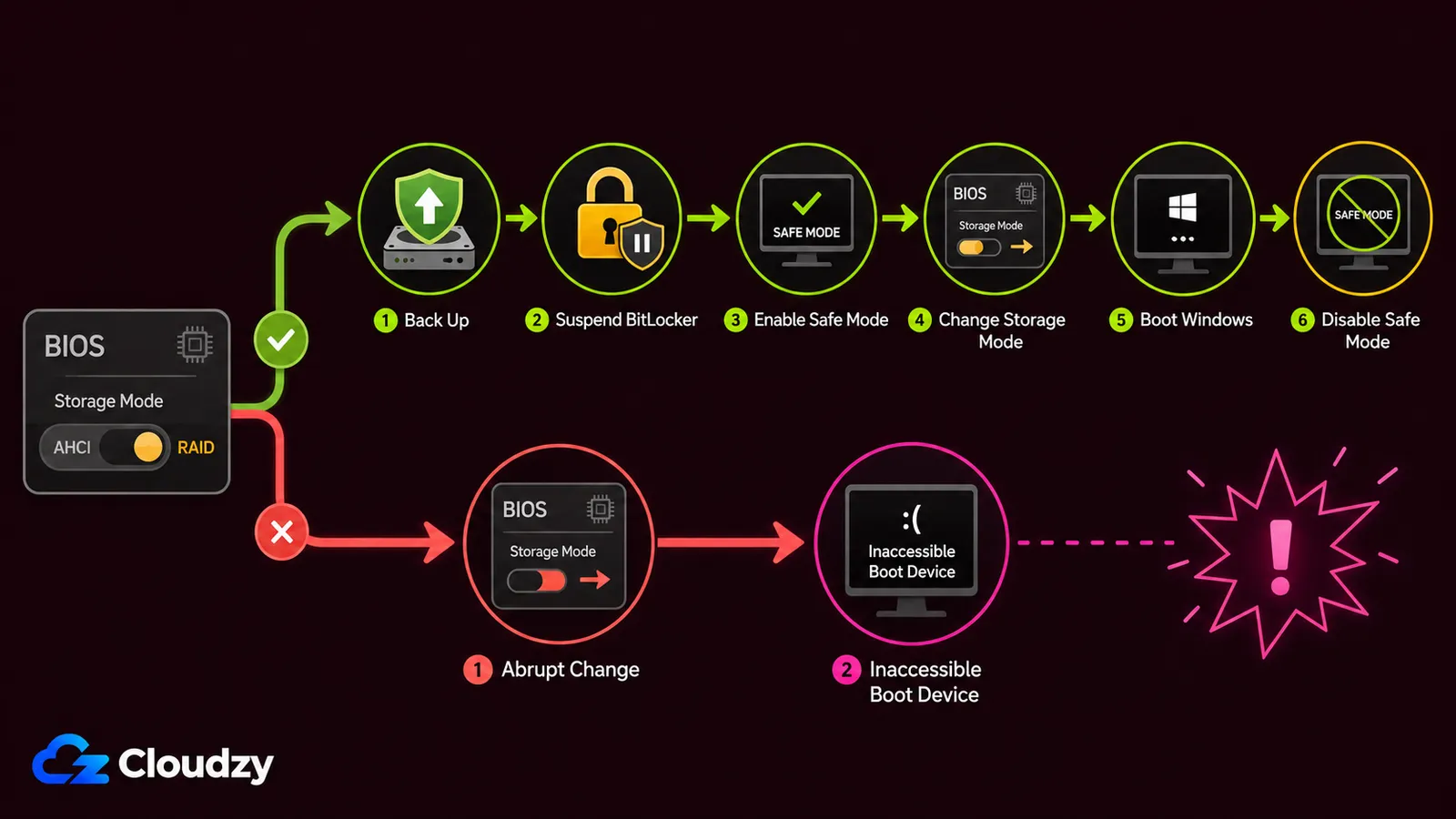
Changing the storage-controller mode after Windows is installed can trigger INACCESSIBLE_BOOT_DEVICE (0x7B) or a recovery loop. Windows was installed with a boot-critical driver and configuration that match the original controller presentation. After a direct switch, the system may no longer be able to reach the boot drive through the controller it expects.
The safest response to an accidental switch is to restore the original firmware setting. If the change is intentional, confirm that there is no active RAID or Optane volume and follow the OEM procedure. Intel warns that changing VMD or RST after installation can cause an inaccessible boot device, and Dell documents the same controller-mode mismatch.
For Windows 10 or 11 systems without an active RAID 0 or RAID 1 array, Dell documents a Safe Mode migration procedure. It can work because Windows starts once with the new controller presentation and loads the needed storage driver in Safe Mode, but it is not universal or guaranteed across OEMs.
Before starting, make a full backup, save the BitLocker recovery key, suspend BitLocker protection, and confirm the exact procedure for the model. Microsoft also cautions that changing boot options with BCDEdit can make a computer inoperable.
Run this as an administrator before restarting:
bcdedit /set {current} safeboot minimalAfter Windows boots in Safe Mode, run:
bcdedit /deletevalue {current} safebootThen restart normally. If Windows does not boot, restore the original firmware setting. Do not continue if the machine uses an active RAID volume, Optane, or an OEM-specific recovery image; follow the vendor’s supported migration or reinstallation path.
Key takeaway: the danger is not the label itself; it is changing the controller presentation after Windows has committed to a driver path.
If you never see this setting because you are on a VPS, that is expected. The provider owns the bare-metal storage layer and presents a virtual disk, so motherboard storage mode is outside the guest operating system’s control.

On-demand cloud VPS on AMD EPYC processors with NVMe storage.
Buy Cloud VPS HourlyConclusion
For a new system with one SATA drive and no firmware RAID feature, AHCI is usually the simplest choice. Use RAID, RST, or VMD when an array, Optane or VMD workflow, or OEM configuration requires it. A direct-attached NVMe drive does not use AHCI, but VMD can still place NVMe behind a vendor driver. Most importantly, do not change a working system’s storage mode casually: back up, protect the BitLocker recovery path, and follow model-specific instructions.
Frequently Asked Questions
Should BIOS Be Set to AHCI or RAID?
For a fresh install with one SATA drive and no firmware RAID requirement, AHCI is usually the clean default. Choose RAID, RST, or VMD when the platform needs an array, Optane or VMD management, or an OEM driver path. If the system already boots correctly in its factory mode, leave it there unless you have a verified reason and migration procedure.
Is RAID Mode the Same as AHCI?
No. AHCI is a defined SATA host interface, while BIOS RAID mode normally exposes a vendor-managed controller such as Intel RST, Intel VMD, or AMD RAIDXpert2. The RAID path may retain SATA features such as NCQ and hot-plug, but it is not universally ‘AHCI plus RAID,’ and Windows uses a different driver stack.
Does AHCI or RAID Mode Affect NVMe Drives?
Not through plain AHCI. A direct-attached NVMe drive uses PCIe and the NVMe command set rather than the SATA AHCI interface. However, Intel VMD and similar OEM storage remapping can place selected NVMe devices behind a RAID or RST controller, so the firmware label and model documentation matter.
Can I Switch from RAID to AHCI Without Reinstalling Windows?
Often, but not always. Dell documents a Safe Mode method for Windows 10 and 11 systems without an active RAID 0 or RAID 1 array. Back up first, save the BitLocker recovery key, suspend BitLocker, and follow the model-specific instructions. If a direct change prevents booting, restore the original setting; some systems require a supported driver migration or Windows reinstall.
What Does IDE Mode Do, and Should I Use It?
IDE mode presents SATA hardware through a legacy Parallel ATA-compatible interface without AHCI features such as NCQ or AHCI hot-plug support. It exists for operating systems that predate AHCI, such as Windows XP. Modern systems should normally use AHCI or the vendor-required RAID, RST, or VMD mode, and many current UEFI firmwares no longer offer IDE.