
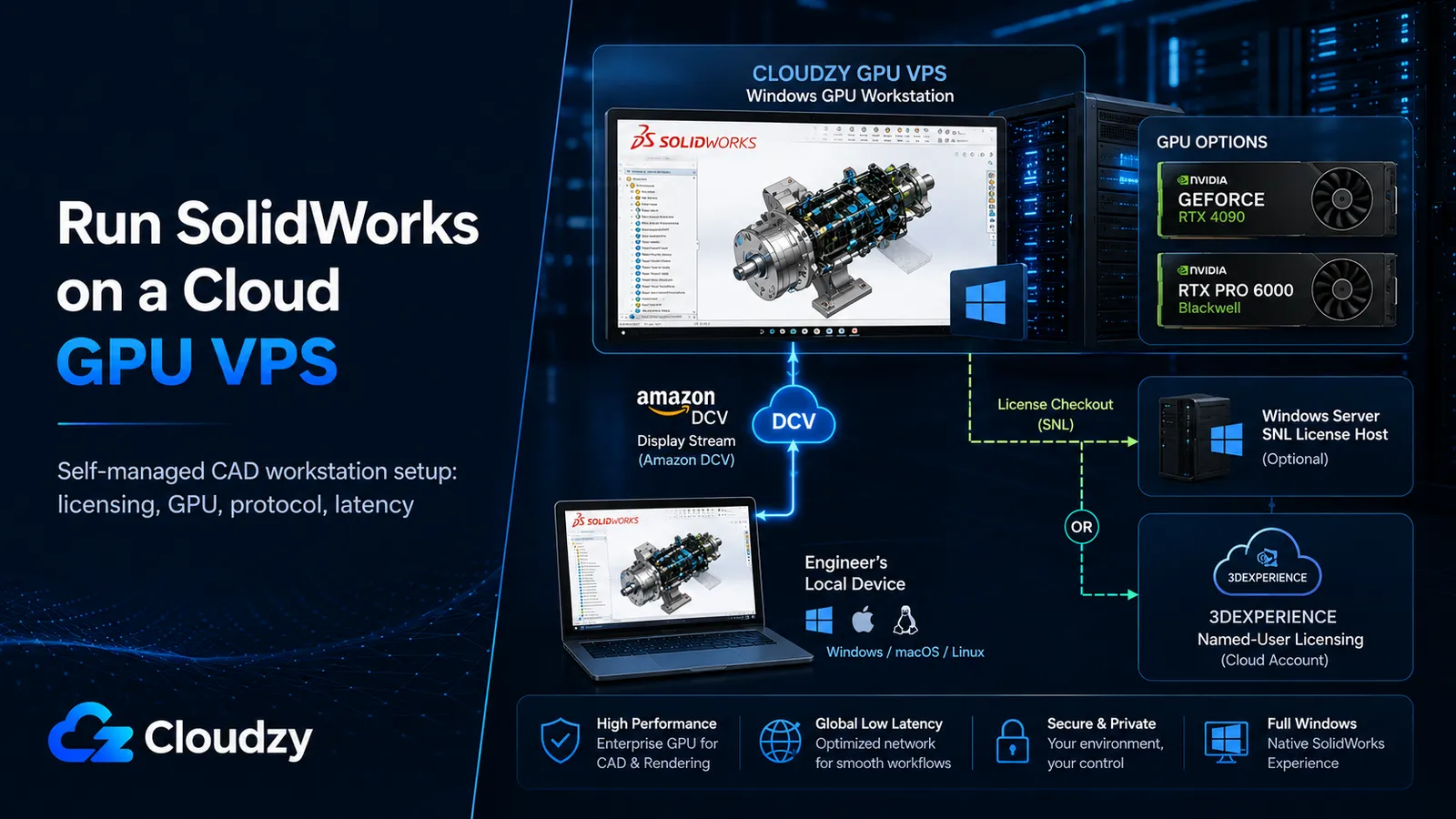
A four-person engineering shop holds three SolidWorks licenses, wants its CAD horsepower in the cloud, and searches for how to run SolidWorks on a cloud GPU VPS. Most results are managed Desktop-as-a-Service sales pages quoting $99 to $479 per user per month. None of them tells you how to do it yourself on hardware you control.
There is a self-managed path, and it can undercut managed DaaS pricing when a team rotates non-concurrent use across one flat-rate GPU instance. But it also has three landmines that kill most DIY attempts, including licensing on KVM, the display protocol, and GPU certification, plus one hard limitation that has nothing to do with skill: latency. This guide walks the entire path, from OS and licensing to display protocol and GPU choice, and is just as direct about where it stops working as about how to build it.
TL;DR
- The self-managed GPU VPS path can beat managed DaaS when a team rotates non-concurrent use across one flat-rate GPU instance. If every engineer needs a simultaneous daily desktop, you need more GPU instances or a proper RDS/VDI design, and the cost math changes.
- Standalone node-locked SolidWorks licenses are not a clean fit for KVM-based VPS environments. Use either a 3DEXPERIENCE named-user license, or an existing SolidNetWork License server running on a supported Windows Server environment. Do not assume SNL can simply be moved to a small Linux/KVM VPS.
- Standard RDP is a poor default for GPU-accelerated SolidWorks sessions and can fall back to the wrong graphics path unless the host is configured for hardware GPU use. Amazon DCV (formerly NICE DCV) is the better production protocol for remote 3D work.
- The RTX 4090 is not ISV-certified, so RealView may require a registry workaround that can need re-checking after Service Pack, driver, or GPU-name changes. The RTX PRO 6000 Blackwell is the cleaner professional-GPU path: 96 GB of ECC VRAM, ISV certification support, and no consumer-card RealView workaround.
- Interactive viewport work needs round-trip latency under about 40 ms. US-based teams connecting to nearby GPU locations can be fine. From the UK, EU, or Asia, treat a US-based GPU VPS as a compute-burst machine, not a daily modeling seat.
What This Guide Doesn't Cover
This is the workstation-session build. A few related topics have their own scope and are deliberately out of bounds here:
- The SolidWorks PDM vault on a cloud VPS, which has its own SQL Server and latency constraints. (Companion article when published.)
- The detailed SolidNetWork License server build, including installation, activation, firewalling, borrowing behavior, and upgrade rules. That is its own licensing-infrastructure job, not part of this workstation-session guide.
- Multi-user RDS session setup and the Windows RDS CAL licensing that comes with it.
- FEA and Flow Simulation GPU benchmarks. In practice those workloads are CPU- and RAM-bound, and there is no clean published data for the cloud-VPS case.
- Linux plus Wine. There is no SolidWorks Linux client and Wine is unsupported, so that branch closes itself.
What You'll Need
Before you provision anything, confirm you have the pieces this path assumes:
- An existing SolidWorks license, and knowledge of which type it is. The licensing section turns on this answer.
- A Windows license path for the GPU VPS, because the supported SolidWorks client path is Windows 11, while many cloud/server environments are easier to deploy with Windows Server images.
- Administrative access to the VPS and comfort with Windows server administration, GPU driver installation, and firewall configuration.
- A clear-eyed read on your team's geography, because the latency section is a hard gate, not a footnote.
This is a tutorial for someone who runs infrastructure for a living, not a first server. If "open gpedit.msc and edit a Group Policy" is unfamiliar territory, managed DaaS is the cheaper use of your time.
The Self-Managed Path vs. Managed DaaS: The Cost Math
Managed DaaS vendors publish the numbers that make the comparison easy. Apps4Rent lists SolidWorks cloud hosting from $99 to $479 per user per month across its plan range (as of 2025), and IronOrbit's 2025 cloud-desktop guide puts dedicated RTX-class seats at roughly $190 to $400 per user per month. Those are per-user, per-month figures, and they recur whether the engineer logged in twice that month or not.
A self-managed dedicated GPU VPS bills differently: a flat monthly rate for the whole instance. One dedicated physical GPU instance with 24 GB of VRAM and 256 GB of system RAM can serve a single heavy modeling session comfortably, and a small team can rotate or schedule across one machine rather than buying a seat each. The break-even is an engineer count, not a blanket claim. With one engineer, a single $200-ish DaaS seat is cheaper and simpler than running your own machine. By the time three or four engineers are rotating across one flat-rate instance, the per-seat economics can move strongly in favor of self-managed.
This is the part the sales pages leave out: you are not buying a discount, you are buying a job. Self-managed trades the per-seat premium for IT burden. Someone on your side now owns the operating system, the GPU drivers, the firewall rules, the license server, and, if you run a consumer GPU, the RealView workaround that may need checking after SolidWorks or driver updates. None of that is hard for a competent admin. All of it is real work that the DaaS fee was quietly paying for. This path is for teams that have an IT admin who can own it. If you don't, the math that looks cheaper on paper gets expensive in unplanned afternoons.
Section takeaway: The decision is an engineer-count threshold, not "self-managed is always cheaper." Below roughly three non-concurrent users sharing the same GPU instance, managed DaaS usually wins on total cost of ownership.
Once the cost case holds for your team, the build starts with one decision: where to provision the workstation session. The engineering seat runs on a Cloudzy GPU VPS sized to the assemblies your team works on. If you use SolidNetWork licensing, keep the SNL server as close to that GPU workstation as possible from a network perspective, but do not assume it can simply move to a small Linux/KVM VPS. SolidNetWork License Manager belongs on a supported Windows Server environment, and any cloud or virtualized license-server deployment should be approved by your SOLIDWORKS reseller before production. If you use 3DEXPERIENCE named-user licensing, that separate license-server step goes away. We deploy the GPU instance with Windows for the SolidWorks client; the rest of this guide assumes that instance exists.
Choosing the OS: Windows 11 vs. Windows Server 2022
Here is the support reality that decides everything downstream: SolidWorks officially supports Windows 10 and Windows 11 Pro, Enterprise, and Education (64-bit) for the CAD client, and starting with SolidWorks 2026 it supports Windows 11 only, because Windows 10 reached Microsoft end-of-life in October 2025. Windows Server is officially listed for the PDM Server, Archive Server, and SolidNetWork License Manager (the supporting services), not for the CAD client itself.
That creates a tension, because many raw GPU VPS environments are easier to deploy with server images than with a fully supported Windows 11 workstation path. Some managed SolidWorks cloud-hosting plans publicly list Windows Server 2022, which shows how common the Server route is in cloud-desktop packaging. The catch is that Windows Server is still not the officially supported OS path for the SolidWorks CAD client. If you open a support case from a Windows Server box, a careful VAR may flag that you are outside the client OS list.
The position here is not subtle: Windows 11 is the supported, recommended path. If you want SolidWorks support to apply cleanly and your Windows licensing allows it, bring a Windows 11 image to the VPS. Windows Server 2022 with Desktop Experience can work in real-world cloud-desktop deployments, but label it plainly as unsupported for the CAD client rather than discovering that fact mid-incident. One more billing reality that applies regardless of protocol: remotely accessing a Windows Server GUI can require Windows Server and Remote Desktop Services licensing. That cost belongs in your comparison if you go the Server route.
Section takeaway: Windows 11 is the supported choice; Windows Server 2022 plus Desktop Experience works but is unsupported for the CAD client and carries RDS CAL obligations.
The Licensing Path: Why Standalone Fails on KVM
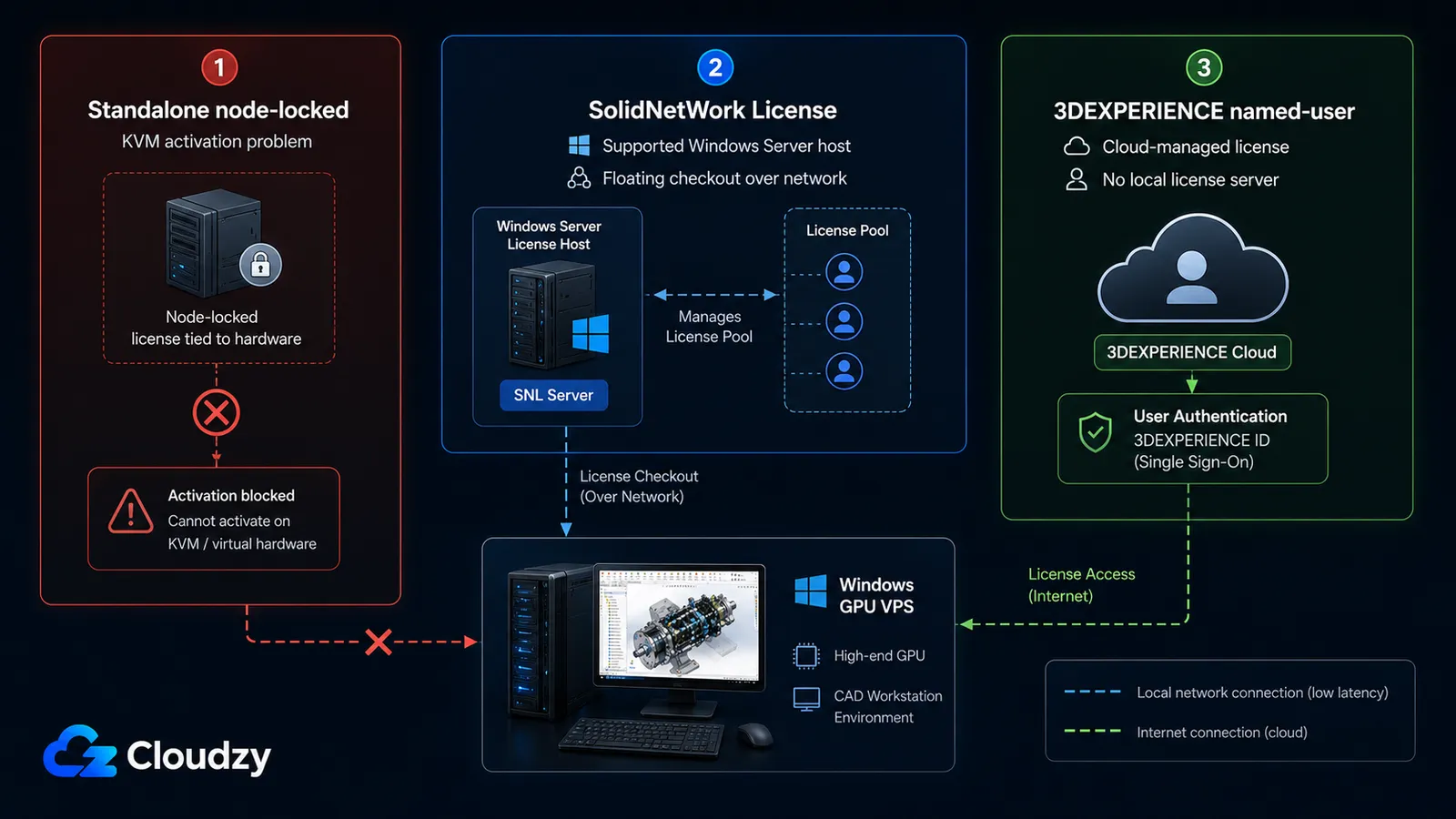
The first wall a self-managed setup hits is a specific error string: "Activation license mode is not supported in this virtual environment, please use a SolidNetwork License." It appears when you try to activate a standalone, node-locked SolidWorks license on a KVM-based VPS, and no amount of retrying clears it. SolidWorks uses FLEXnet license management, and FLEXnet runs a hypervisor check on activation. The officially supported hypervisors are VMware, Microsoft Hyper-V, Citrix, and Parallels. KVM (the hypervisor under most cost-effective VPS hosting, including Proxmox-based stacks) is not on that list, so standalone activation refuses.
There are three ways through this, and the right answer for most teams is the first one.
A. SolidNetWork License (SNL floating)
This is the standard answer when the license server itself runs in a supported Windows Server environment. You run SolidNetWork License Manager on that server, and the SolidWorks client checks out a floating license over the network. In that design, the client machine's KVM hypervisor is no longer the activation target, but the SNL server still needs to be treated as licensing infrastructure, not as a random small Linux/KVM VPS. SolidNetWork License Manager is not resource-heavy, but the license host should be stable, supported, and boring. This is the wrong place to save a few dollars with an unsupported Linux/KVM shortcut. For firewalling, plan around TCP 25734 and TCP 25735 unless your reseller or license-admin workflow changes the default ports. One operational rule worth pinning to the wall: keep the SNL Manager aligned with, or newer than, the SolidWorks clients it serves. The full SNL server build is outside this guide.
B. 3DEXPERIENCE named-user
If licensing complexity is your primary blocker, the cleanest escape is a 3DEXPERIENCE SOLIDWORKS named-user subscription. It is cloud-managed and machine-independent, which means it sidesteps the KVM activation check entirely (there is no machine binding to fail). It is subscription-only with a 30-day offline grace period, and it still requires a capable machine to run on, so it solves the license problem and nothing else. For a team that wants to stop fighting FLEXnet, that is often enough.
C. The KVM workaround (unsupported)
There is a community-reported workaround that gets standalone or SNL activation working on KVM directly. According to Proxmox community forum threads, configuring the VM with a SCSI storage controller (not IDE or SATA), OVMF BIOS, and the q35 machine type on Proxmox 8 and later bypasses the FLEXnet virtualization detection check. One thread reports that later Proxmox plus Windows Server 2022 combinations resolved activation out of the box with no workaround at all (a single data point, treat it as advisory). This is community-sourced, version-dependent, and explicitly not a SolidWorks recommendation. If your team relies on a VAR support contract, confirm with them before deploying on KVM, because running on unsupported infrastructure can affect your support entitlement.
Section takeaway: Do not plan this build around node-locked standalone activation on KVM. Use 3DEXPERIENCE named-user licensing, or use SolidNetWork licensing with the SNL server on a supported Windows Server environment. The KVM workaround is an unsupported escape hatch, not a foundation.
Setting Up Remote Desktop That Actually Passes the GPU
This is the silent killer of self-managed CAD: a GPU instance that feels like molasses, and an engineer convinced the network is broken. The network may be fine. If the remote display protocol is not passing hardware-accelerated graphics correctly, SolidWorks can fall back to Software OpenGL or another CPU-heavy path regardless of how powerful the physical GPU is. The GPU sits idle while the CPU grinds out the viewport, and the symptom looks exactly like latency.
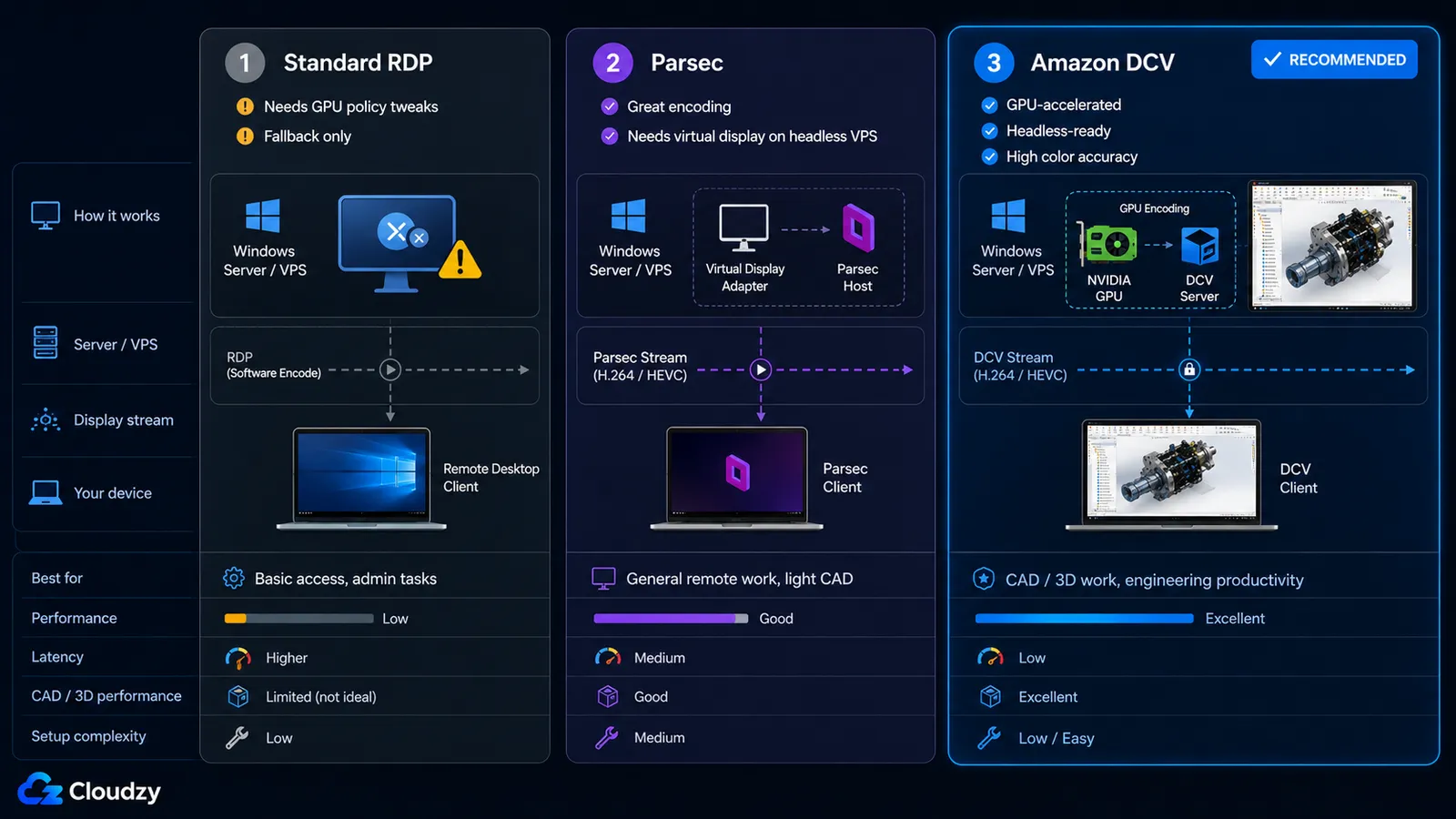
There are three protocols people reach for, and only one of them is right for production CAD.
| Protocol | Hardware OpenGL | Headless VPS support | Color accuracy | Setup effort | Recommended for CAD? |
|---|---|---|---|---|---|
| Standard RDP | No by default (needs Group Policy tweak) | Yes | Standard | Low | Fallback only |
| Parsec | Yes (NVENC) | No without a virtual display adapter | Good | Medium | Only with a virtual display adapter |
| Amazon DCV (NICE DCV) | Yes (native GPU encoding) | Yes (virtual framebuffer) | YUV 4:4:4 high accuracy | Medium | Yes (production choice) |
RDP can be coaxed into using the GPU. In gpedit.msc, navigate to Computer Configuration > Administrative Templates > Windows Components > Remote Desktop Services > Remote Desktop Session Host > Remote Session Environment, and enable "Use hardware graphics adapters for all Remote Desktop Services sessions," then also configure the relevant H.264/AVC or HEVC hardware-encoding policies if you plan to use RDP as a fallback.
Parsec uses NVIDIA NVENC hardware encoding on the host GPU, which keeps encoding latency low, and works well on physical workstations. On a headless cloud VPS, it fails to connect, because there is no physical monitor for it to capture. This is a recurring dead end: admins know Parsec from gaming and streaming, assume it works anywhere, and stall when it won't see the server. Parsec is viable here only if you add a virtual display adapter, and even then it is the long way around.
Amazon DCV (formerly NICE DCV) is the protocol built for this. It does native GPU-accelerated encoding, runs headless via a virtual framebuffer (no physical monitor needed), and supports YUV 4:4:4 color, which matters when you are evaluating surface finish and edges rather than watching video. It transports over TCP or QUIC. One licensing note worth getting right: DCV is free of additional charge only when running on Amazon EC2. On your own VPS it installs with a 30-day evaluation license and then requires a paid production or subscription license for continued use. Budget for that, and check the current Amazon DCV licensing terms before you commit, since they change.
Section takeaway: The protocol, not the GPU, is the usual reason a remote SolidWorks session is slow. Amazon DCV for production; RDP only as a Group-Policy-patched fallback; Parsec only with a virtual display adapter.
Choosing the GPU: Certification Reality
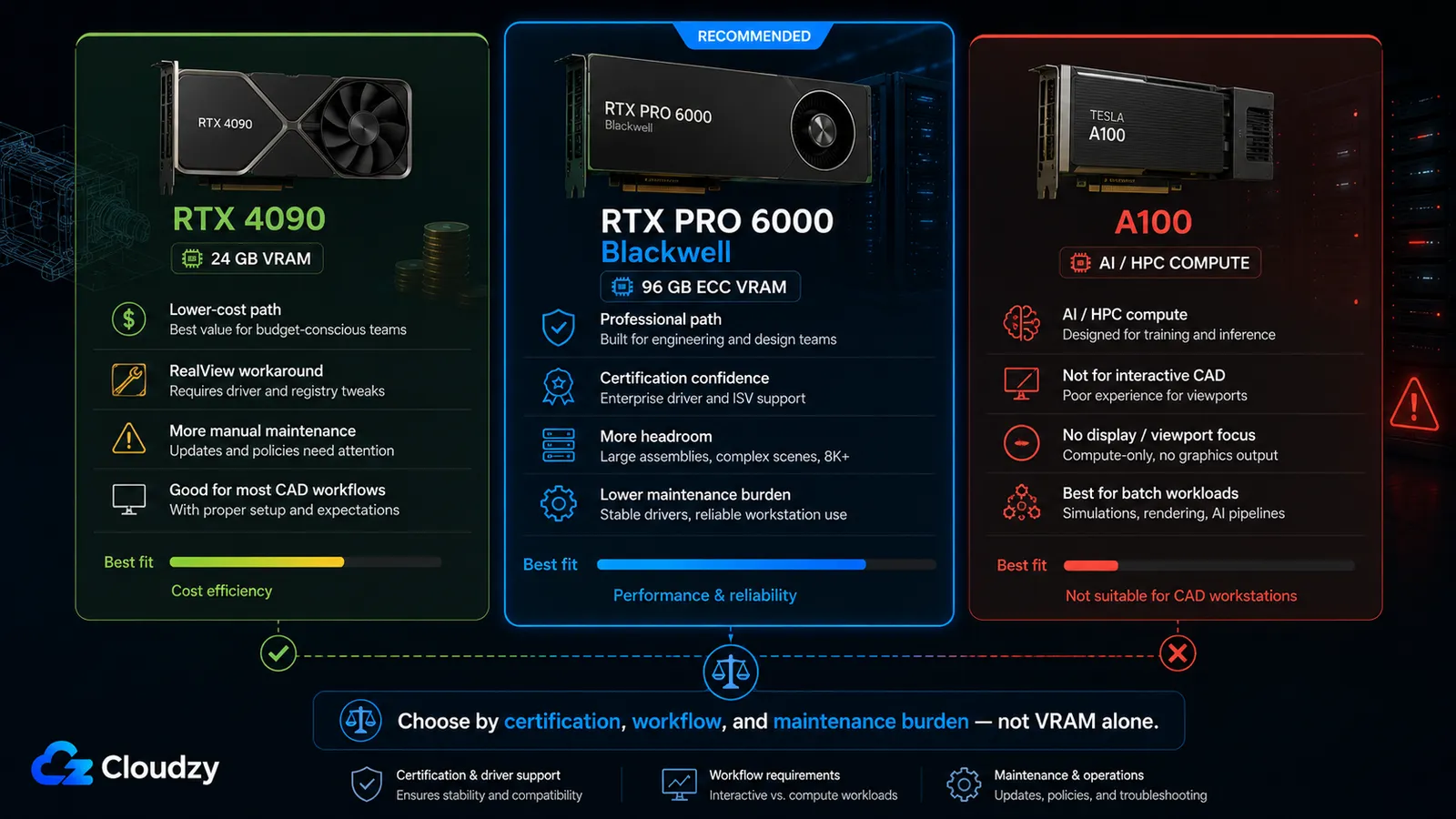
The question everyone actually asks is "Can I use an RTX 4090, or do I need a pro card?" The honest answer is "yes, but," and the "but" is RealView. SolidWorks certification favors professional workstation GPUs, not consumer GeForce cards. NVIDIA RTX professional cards, including Ada-generation RTX 6000 and newer RTX PRO Blackwell models, sit in that professional/ISV-certified lane; the RTX 4090 does not. The RTX 4090 is a consumer GeForce card and is not on the ISV certification list. When SolidWorks detects a non-certified GPU, RealView Graphics is unavailable by default. If the remote protocol, driver, or GPU path is also misconfigured, the session can fall into Software OpenGL or another CPU-heavy rendering path. There is no clean warning that says "your expensive GPU is not being used correctly"; the viewport just looks flat or runs slowly, and engineers blame the network.
Note: RealView being unavailable and Software OpenGL fallback are easy to confuse. Engineers routinely mistake the resulting flat or sluggish viewport for network lag, then spend an afternoon debugging a connection that was never the only problem. If RealView is off, the symptom is local, not on the wire.
The RTX 4090 can run RealView with a registry workaround that has worked since SolidWorks 2023. It involves creating a key under HKEY_CURRENT_USER\SOFTWARE\SolidWorks\AllowList\Gl2Shaders keyed to the exact GPU name as it appears in Device Manager, with a DWORD value named "Workarounds." The exact values are finicky and version-specific, so rather than transcribe a hex string that may be wrong for your build, use a documented registry workflow, or inspect the open-source SolidWorks RealView Enabler tool before running it. It can automate the change, but it is still a third-party utility, so admins should review the source or compile it themselves before using it on a production machine.
Note: The RealView registry workaround may need to be re-applied after SolidWorks Service Pack updates, driver changes, or GPU-name changes. In a shared team setup, one update can break RealView for everyone on that instance until the registry entry is checked again.
The RTX PRO 6000 Blackwell is the professional-card path for this build. It gives you 96 GB of GDDR7 ECC VRAM, professional driver support, and the ISV-certification track that consumer GeForce cards do not get. In practice, that means RealView is expected to work without the consumer-card registry workaround when the card, driver, and SolidWorks version are on the certified path, and the card has far more VRAM headroom for large assemblies, visualization, rendering, and multi-application CAD workflows. Puget Systems' 2025 professional GPU engineering roundup tests RTX PRO Blackwell cards alongside Ada-generation cards and makes the same practical point: professional GPUs are not just about raw speed; the value is driver validation, software support, and certification confidence.
For sizing, match VRAM to assembly size rather than buying the biggest number. Small assemblies under roughly 500 parts run fine on 4 to 8 GB of VRAM. Large assemblies in the 2,000 to 5,000 part range want 16 to 24 GB. Budget 64 GB or more of system RAM for serious large-assembly work, since SolidWorks holds a lot in memory. And remember that modeling is primarily single-threaded: a high single-thread clock speed matters more than core count, which is why a noisy-neighbor virtual environment that throttles clock speed hurts CAD more than it hurts most workloads.
The RTX PRO 6000 Blackwell's 96 GB of VRAM is more than most pure modeling sessions need, but that is not the only reason to choose it. The stronger case is certification confidence, ECC memory, native RealView behavior, and headroom for shared professional workflows that mix large assemblies, visualization, rendering, and adjacent AI or simulation tasks.
One card to rule out explicitly: the A100. It is a datacenter accelerator built for AI and HPC compute, not an interactive CAD workstation GPU. NVIDIA's own A100 architecture material describes it as a server/data-center GPU for AI and HPC workloads and notes that it does not include display connectors, RT cores, or an NVENC encoder. That makes it the wrong fit for a remote SolidWorks viewport workflow, even though its 80 GB of HBM memory looks attractive on paper. Do not put SolidWorks on it unless the workload is compute-only and not interactive modeling.
Section takeaway: Certification decides RealView. Pick the RTX 4090 if you accept the registry-workaround maintenance. Pick the RTX PRO 6000 Blackwell when RealView, ECC memory, professional driver validation, and long-term headroom matter more than the cheapest workable GPU.
The Setup, Start to Finish
With the decisions made (OS, license type, protocol, GPU), the build is a straight sequence. Each step assumes the one before it succeeded.
- Provision a Windows-capable GPU VPS sized to your assemblies: the RTX 4090 instance with 24 GB of VRAM for cost-sensitive teams that can tolerate the RealView workaround, or the RTX PRO 6000 Blackwell instance with 96 GB of ECC VRAM for the cleaner professional-GPU path. If you use SolidNetWork licensing, keep the SNL server close to the GPU workstation from a network perspective, but run it on a supported Windows Server environment and confirm the deployment model with your SOLIDWORKS reseller.
- Install the operating system. Windows 11 is the supported path. If your image is Windows Server 2022, enable the Desktop Experience feature, and treat it as the unsupported-but-working fallback.
- Install the GPU drivers for your card, then confirm in Device Manager that the GPU is recognized with its exact model name (you will need that name for the RealView step).
- Install and configure Amazon DCV with a virtual display adapter so the session has a framebuffer to render into on the headless instance. Verify a session connects and reports hardware encoding before installing SolidWorks.
- Set up licensing. If you use SolidNetWork licensing, run SolidNetWork License Manager on a supported Windows Server environment, plan around TCP 25734 and TCP 25735 unless your reseller changes the defaults, and point the SolidWorks client at that license server. If you use 3DEXPERIENCE named-user licensing, sign in instead. Do not attempt standalone activation on the KVM instance.
- Install SolidWorks with the standard BYOL installer and confirm it checks out a license from the server.
- If you are on a non-certified GPU, apply the RealView registry workaround only after reviewing the exact registry change for your SolidWorks version and GPU. A third-party RealView Enabler tool can automate the process, but admins should inspect the source or compile it themselves before using it on a production team machine. Then open a model and confirm RealView is active rather than Software OpenGL.
Where a step is vendor-specific (the DCV install, the SNL server build), follow the official documentation for the current version rather than a transcribed command that may have drifted. The DCV administrator guide and the SolidWorks SNL Manager installation guide are the primary sources.
Who This Is and Isn't For (The Latency Verdict)
Interactive viewport work needs round-trip latency under about 40 ms to feel local. IronOrbit's cloud-desktop guidance puts the same threshold in practice: under 40 ms is indistinguishable from local, 60 to 80 ms is workable but noticeable, and 100 ms and up makes precise modeling frustrating. This is not a tuning problem you can fix with a better protocol. It is the speed of light through fiber plus switching overhead, and physics always wins.
That makes geography the deciding factor, and it is where this path runs into its ceiling. GPU availability and location matter here. Before treating the setup as a daily workstation, confirm which Cloudzy GPU VPS plans are available closest to your engineers. Cloudzy is expanding GPU coverage as demand for remote engineering workstations grows, but physics still decides the user experience. For engineers in the western and south-central US, round-trip times can sit comfortably under the interactive threshold, making a self-managed GPU VPS a realistic daily seat. For engineers in the UK, EU, or Asia-Pacific, round-trip latency to US-based GPU instances will often exceed that threshold once routing and distance are included. No amount of Amazon DCV tuning closes a transcontinental gap.
So the verdict splits cleanly. If your team is US-based, the self-managed GPU VPS is a viable production workstation, and the cost math above is the real reason to build it. If your team is outside the US, do not plan on full-day remote modeling. The realistic use is compute-burst: run overnight simulations, batch rendering, and long regeneration jobs on the cloud GPU while engineers do interactive modeling on local hardware. That is still a useful machine. It is just not the seat you sit in all day from another continent.
Section takeaway: Self-managed GPU VPS is a US-team play for interactive work. Elsewhere, it is a burst-compute machine, not a daily modeling seat.
Engineering Teams Already Use Cloudzy for CAD Infrastructure
This is not just a theoretical cloud-workstation setup. Engineering teams already use Cloudzy infrastructure for CAD files, software licensing, compute power, and shared engineering workflows.
"Cloudzy allows our engineering team to focus on innovation, not infrastructure. We use their high-performance servers to manage large files and software licenses."
Eric Emmenegger, Team Captain, UTFR (University of Toronto Formula Racing)
"Cloudzy gives us unmatched AMD EPYC performance. So we get to focus on engineering and not managing infrastructure."
UOBRPL, University of Birmingham Dubai
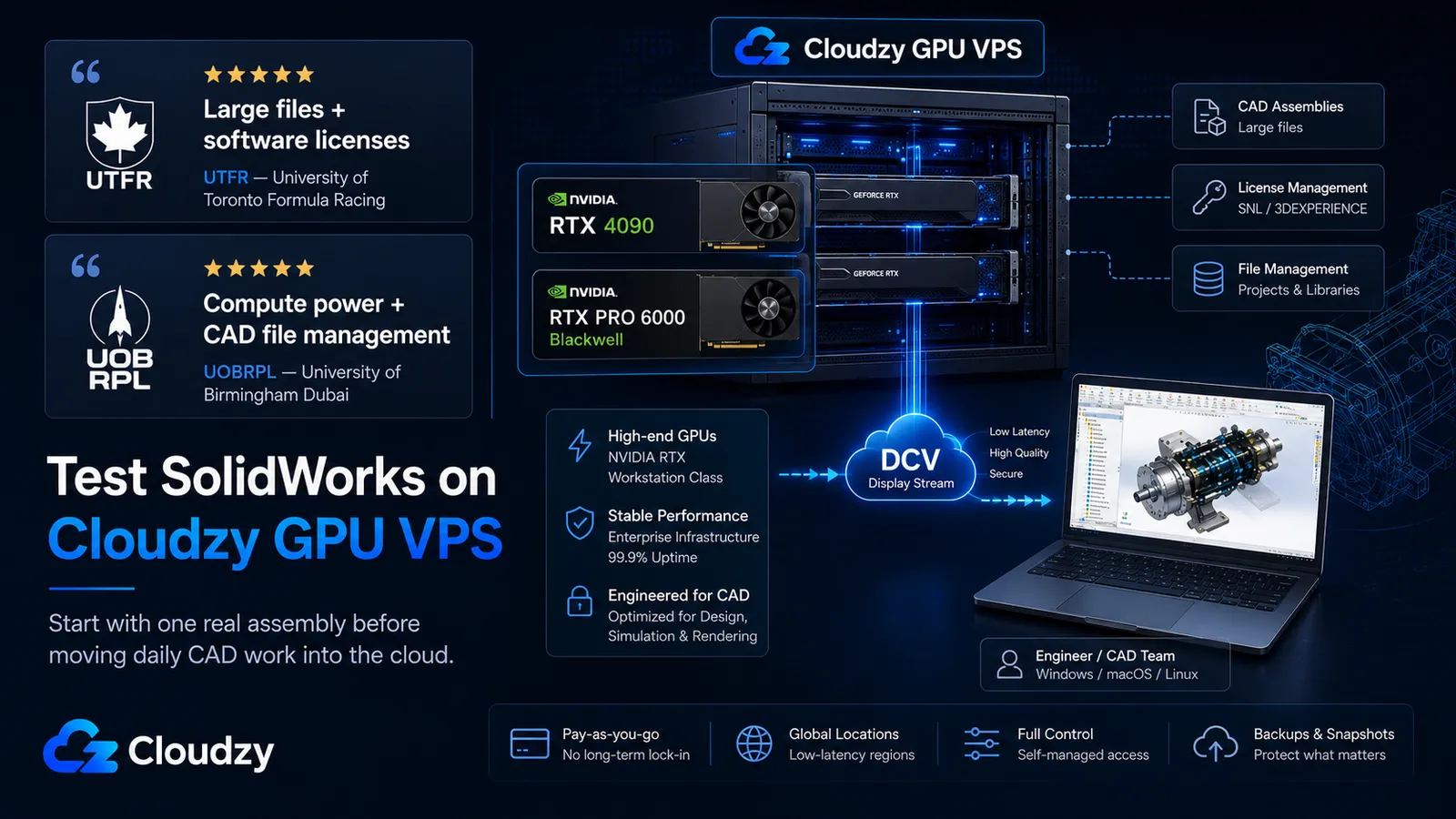
Ready to Test SolidWorks on a Cloudzy GPU VPS?
Start with a pilot, not a full migration. If your team has the right license model, admin capacity, and latency profile, Cloudzy GPU VPS gives you the infrastructure layer to test SolidWorks in the cloud without buying into a managed desktop platform.
Choose RTX 4090 if you want the lower-cost path and can tolerate the RealView workaround. Choose RTX PRO 6000 Blackwell if you want the cleaner professional-GPU path with 96 GB of ECC VRAM, certification confidence, and more long-term headroom.
Check Cloudzy GPU VPS plans, choose the closest available GPU location, and test with one real assembly before moving daily CAD work into the cloud.
Frequently Asked Questions
Can SolidWorks Run on a Virtual Machine or KVM-Based VPS?
Yes, but standalone node-locked licenses will not activate on a KVM-based VPS. SolidWorks' FLEXnet license manager checks the hypervisor and only recognizes VMware, Hyper-V, Citrix, and Parallels, so KVM activation fails with "activation not supported in this virtual environment." Use 3DEXPERIENCE named-user licensing, or use SolidNetWork licensing with the SNL server running on a supported Windows Server environment. Both approaches avoid trying to bind a standalone license directly to the KVM-based SolidWorks workstation.
Does SolidWorks Run on Windows Server 2022?
Officially, the SolidWorks CAD client supports Windows 10 and Windows 11, not Windows Server. Windows Server 2022 with Desktop Experience can run the client in some real-world cloud-desktop deployments, and some managed SolidWorks cloud-hosting plans publicly list Windows Server 2022. But it is still a technically unsupported CAD-client configuration. If clean VAR support matters to you, use Windows 11.
Can I Use an RTX 4090 for SolidWorks?
Yes, with a caveat. The RTX 4090 is a consumer GeForce card and is not ISV-certified, so RealView is unavailable by default. If the remote protocol, driver, or GPU path is also misconfigured, the session can fall into Software OpenGL or another CPU-heavy rendering path. A registry workaround can re-enable RealView in many builds, but it may need to be re-applied after Service Pack, driver, or GPU-name changes. The RTX PRO 6000 Blackwell is the cleaner professional option: it is on SOLIDWORKS' professional GPU certification path, has 96 GB of ECC VRAM, and avoids the consumer-card RealView workaround that the RTX 4090 needs.
What Remote Desktop Protocol Should I Use for SolidWorks on a GPU Server?
Standard RDP is not the best production default for SolidWorks on a GPU server. It can use the wrong graphics path unless the host is configured for GPU-accelerated rendering through Group Policy. Amazon DCV is the cleaner production choice because it is designed for GPU-accelerated remote visualization and supports high-color-accuracy streaming.
Is a Cloud GPU VPS Viable for SolidWorks Outside the US?
For interactive viewport work, only if round-trip latency stays under about 40 ms. US-based teams connecting to nearby US GPU locations may stay within that range, but engineers in the UK, EU, or Asia-Pacific will often exceed it when connecting to US-based GPU instances. Outside the US, a cloud GPU VPS is better used for compute-burst work, such as overnight simulation and rendering, than for full-day interactive modeling.


Discussion
Comments
Sign in to join the discussion.