
Open Activity Monitor or Task Manager, start a small container, and Docker Desktop can still become the loudest thing on the machine. In a February 2026 Docker Desktop issue, a user reported com.docker.backend.exe climbing to 100% CPU after containers started, then continuing even after the containers stopped.
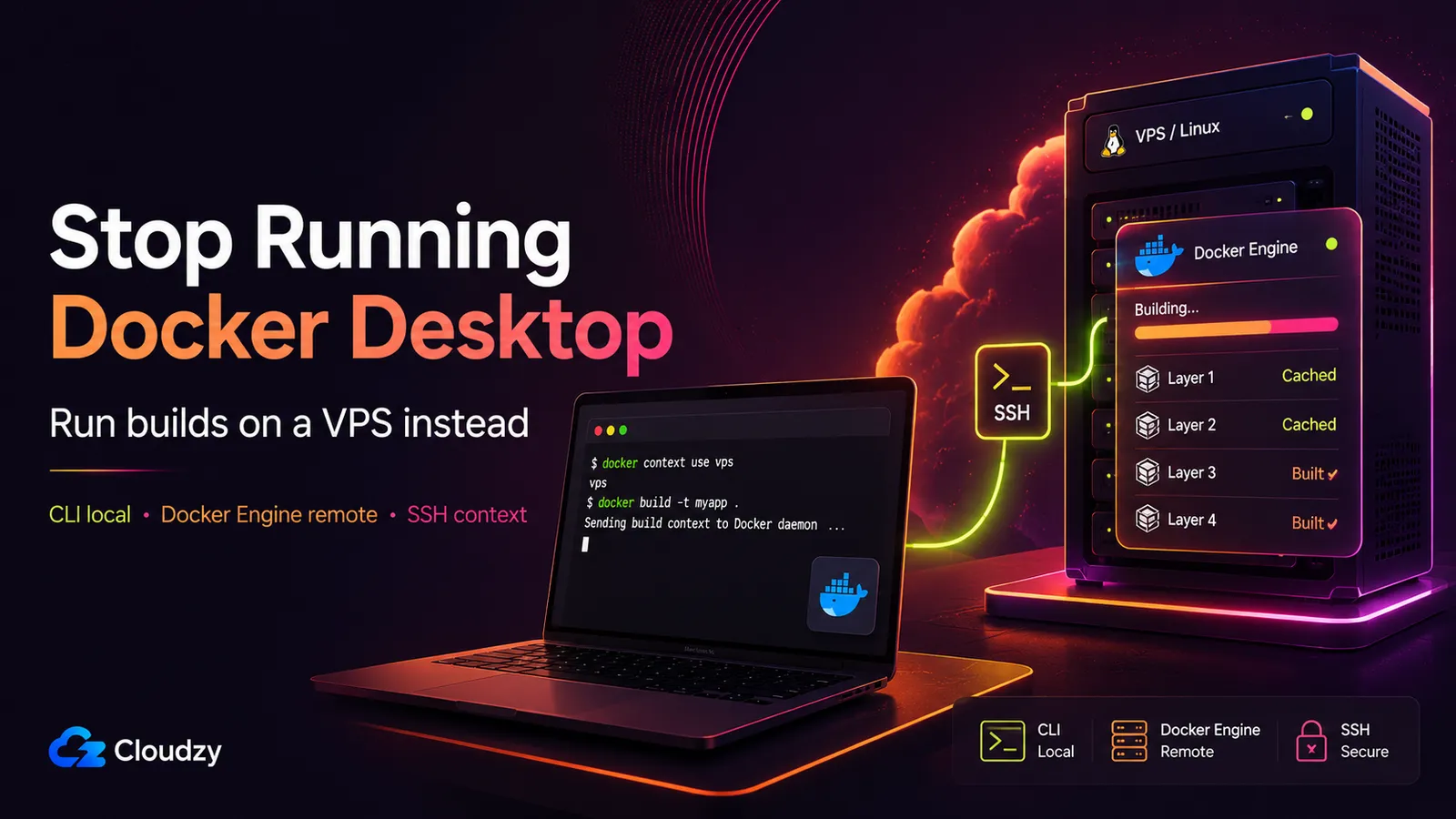
There is a different move: take the daemon off your laptop entirely. Keep only the Docker CLI locally, run Docker Engine on a Linux VPS, and point docker context at it over SSH. Your docker build command does not change. The build just executes somewhere else, on native Linux with no VM layer, with the bandwidth of the VPS pulling base images instead of your café Wi-Fi, and with no Docker Desktop license to track.
This is the complete setup for that path: prerequisites, the exact docker context commands, multi-arch builds with a remote buildx driver, how to size the box, and where the remote approach is the wrong call.
TL;DR
- The problem: Docker Desktop carries a local VM, pushes file I/O through a virtualization layer, and requires a paid subscription for professional use in larger organizations, including companies beyond the free-tier limits of Docker.
- The fix: Remove Docker Desktop. Run Docker Engine on a Linux VPS, create a
docker contextthat points at it over SSH, and your localdocker buildruns on the VPS while your CLI just orchestrates. - The cost frame: One modest VPS replaces a per-seat license and gives you native Linux build speed. A whole team can share a single build box instead of paying per developer.
- The honest caveats: The VPS has to be reachable (no build on a plane), and you need
.dockerignorediscipline so you aren't uploading a multi-gigabyte build context on every run.
Prerequisites: What You'll Need
Before the first command, line these up. Nothing here is exotic if you already run Docker day to day.
- A Linux VPS with root or sudo access. Ubuntu 22.04/24.04 or Debian 12/13 all work fine.
- Docker Engine on the VPS.
docker contextover SSH needs Docker Engine 18.09 or newer on the remote host, per the Docker context documentation. - Docker CLI 19.03 or newer locally. That is the client that understands the top-level
contextcommand. - An SSH keypair. Key-based auth only: password authentication is not supported for
docker contextSSH connections. - The remote user in the
dockergroup, so it can talk to the daemon socket without sudo on every call.
What Docker Desktop Actually Costs You
The costs are not mysterious. They land in three places, and the reader who searched their way here has felt at least one of them. Naming them precisely is the point. You already know the pain.
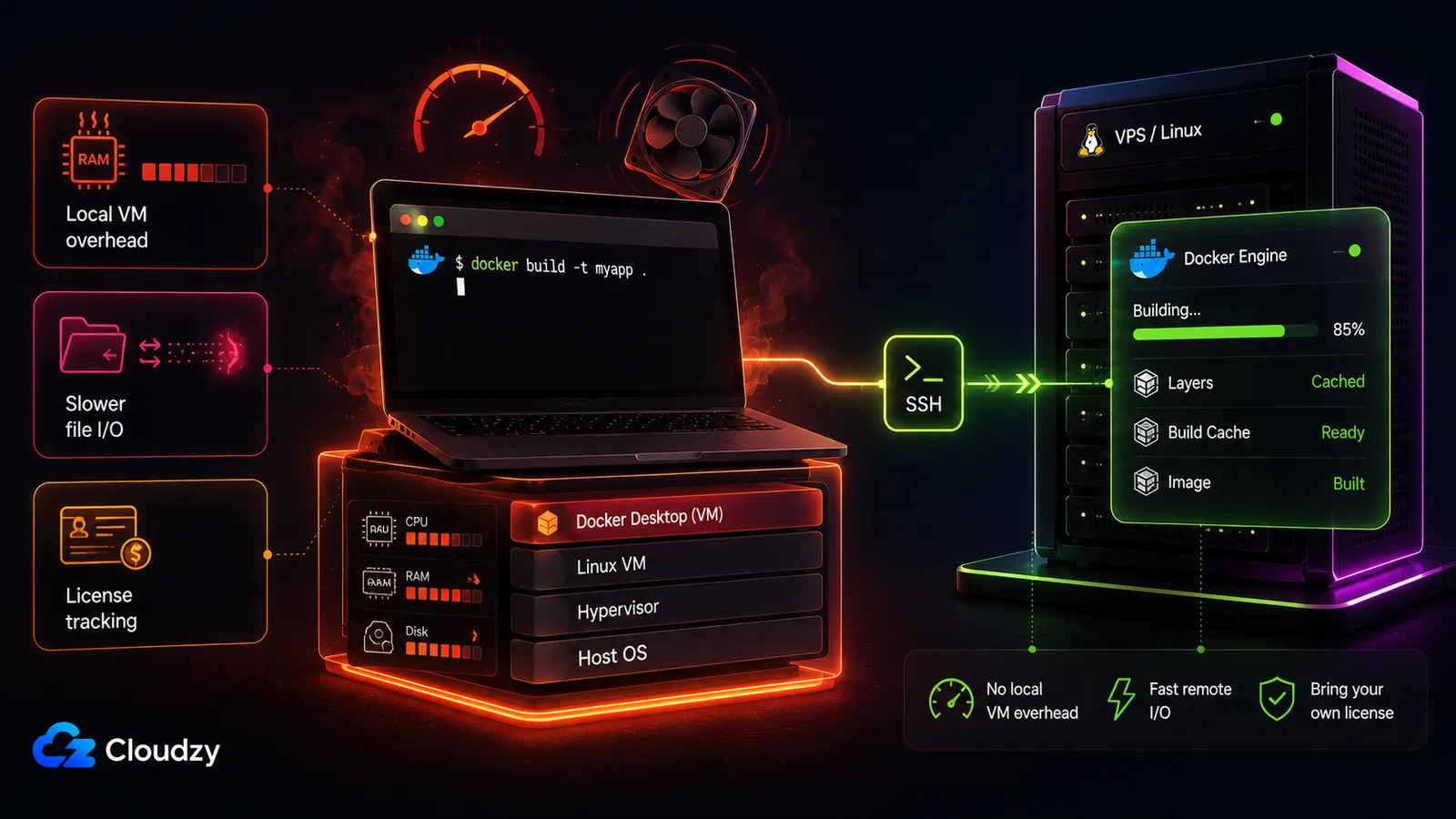
Memory and VM overhead. Docker Desktop still means a local Linux VM. The Docker settings docs say Docker Desktop can limit how much memory the Docker Desktop VM uses, which is the quiet part of the problem: there is still a VM in the loop. The exact footprint varies by OS and project, but the failure modes are real. A Docker for Windows issue reports Docker Desktop consuming many gigabytes of RAM with no containers running, and a WSL2 issue describes Docker builds leaving memory unreleased after containers terminate. The point is not that every machine idles at the same number. It is that Docker Desktop keeps local VM overhead inside your development loop.
Build and file-I/O speed. Bind mounts and file operations that cross the VM boundary are slower than native Linux filesystem access. The Docker known-issues documentation acknowledges the virtualization filesystem cost. Community benchmarks routinely report something in the range of 3-10x slower for bind mounts through the VM layer. That second number is community experience, not a Docker-published benchmark, but the direction is not in dispute by anyone who has watched a build churn on a Mac.
Licensing. Since the 2021 change, Docker Desktop requires a paid subscription for companies over 250 employees or above $10M in revenue. The current tiers on the Docker pricing page are Personal ($0), Pro ($11/mo or $9 annually), Team ($16/mo or $15 annually), and Business ($24/mo). The Team tier moved from $9 to $15 annually in December 2024, a jump that turns a quiet line item into a procurement conversation, which is the part that actually stings when you multiply it across thirty seats.
The Alternatives, and the Local-vs-Remote Fork
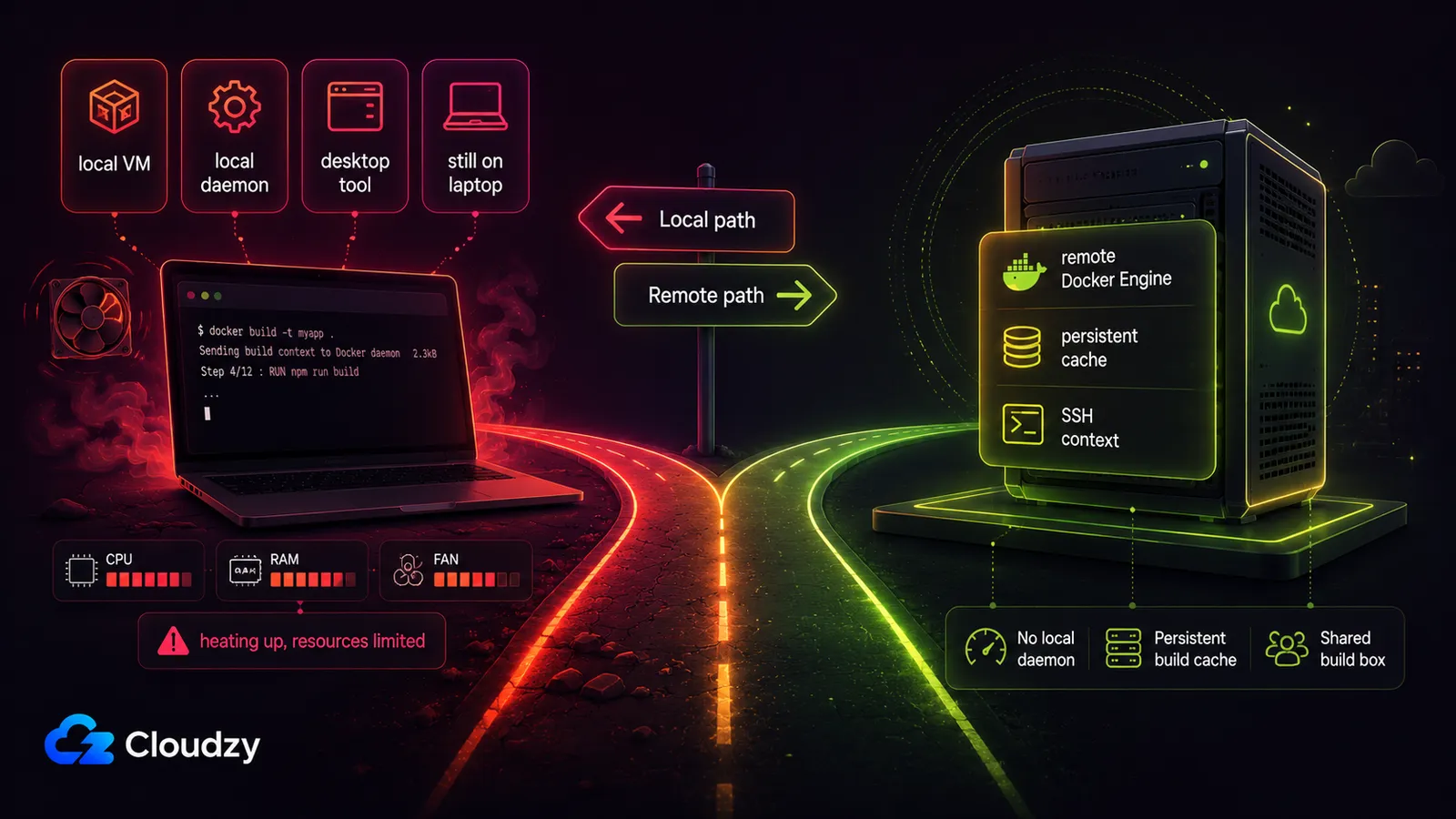
Nearly every Docker Desktop alternative you will find swaps one local daemon for another local daemon. That is the real axis to notice: the choice most people agonize over is between local tools, when the more interesting fork is local versus remote. Only the remote path removes the VM from your machine.
Here is the landscape, side by side.
| Path | Platform | Local VM overhead | Cost shape | Key limitation |
|---|---|---|---|---|
| Docker Desktop | Mac, Windows, Linux | varies by setup | Paid for teams beyond the free-tier limits of Docker | The problem you're leaving |
| OrbStack | macOS only | ~300 MB idle (vendor claim) | Free personal, $8/mo commercial | Mac-only, licensing returns |
| Colima | macOS, Linux | ~400 MB on M1 | Free | Not a drop-in replacement |
| Podman Desktop | Mac, Windows, Linux | VM-based, rootless | Free (Apache-2.0) | Compose needs the Docker-compat socket |
| Rancher Desktop | Mac, Windows, Linux | VM-based | Free (Apache-2.0) | Less Mac adoption |
| Docker Offload | via Docker Desktop 4.68+ | None locally, managed cloud session | Docker Business plus Docker Offload subscription | Requires Docker Desktop, one session per user, ephemeral environment |
| VPS remote context | Any (CLI only local) | None | One VPS, no per-seat license | VPS must be reachable |
A few of these deserve a sentence of honesty:
- OrbStack genuinely fixes the Mac resource problem for a solo developer. It claims ~300 MB idle and up to 10x faster container start (the OrbStack site), both vendor numbers, not independent benchmarks. If you are a Mac-only developer who does not want to manage remote infrastructure, OrbStack is the better call, and its $8/mo commercial tier (OrbStack pricing) undercuts the Docker Desktop Team tier. The catch: it is Mac-only, and the commercial license brings back the exact thing you were trying to escape.
- Colima is free and CLI-first, but its not-a-drop-in-replacement rough edges are well documented, and some teams end up back on Docker Desktop after a migration stalls.
- Podman Desktop and Rancher Desktop are both free and cross-platform. Neither is a silent drop-in, and the Compose compatibility of Podman runs through its Docker-compatible socket.
- Docker Offload is the managed remote build/run service from Docker, but it is not a clean Docker Desktop exit. Current Docker docs list it as requiring Docker Desktop 4.68 or later, a Docker Business subscription, and a Docker Offload subscription. It runs workloads on Docker-managed cloud hosts, but each user gets one Offload session at a time, idle sessions terminate after a 5-minute grace period, and the environment is ephemeral, so containers, images, and volumes disappear when the session ends. That is fine if you want managed remote capacity inside Docker Desktop. It is not the same as a persistent VPS builder with your own cache, disk, root access, and no Desktop dependency.
Staying put is still rational in one case: an individual under the free-tier threshold with no build-speed pain has no reason to change anything. Everyone else has a fork to make.
Section key takeaway: The decision that matters is not which local tool to pick. It's whether you keep a daemon on your laptop at all.
How docker context Over SSH Works
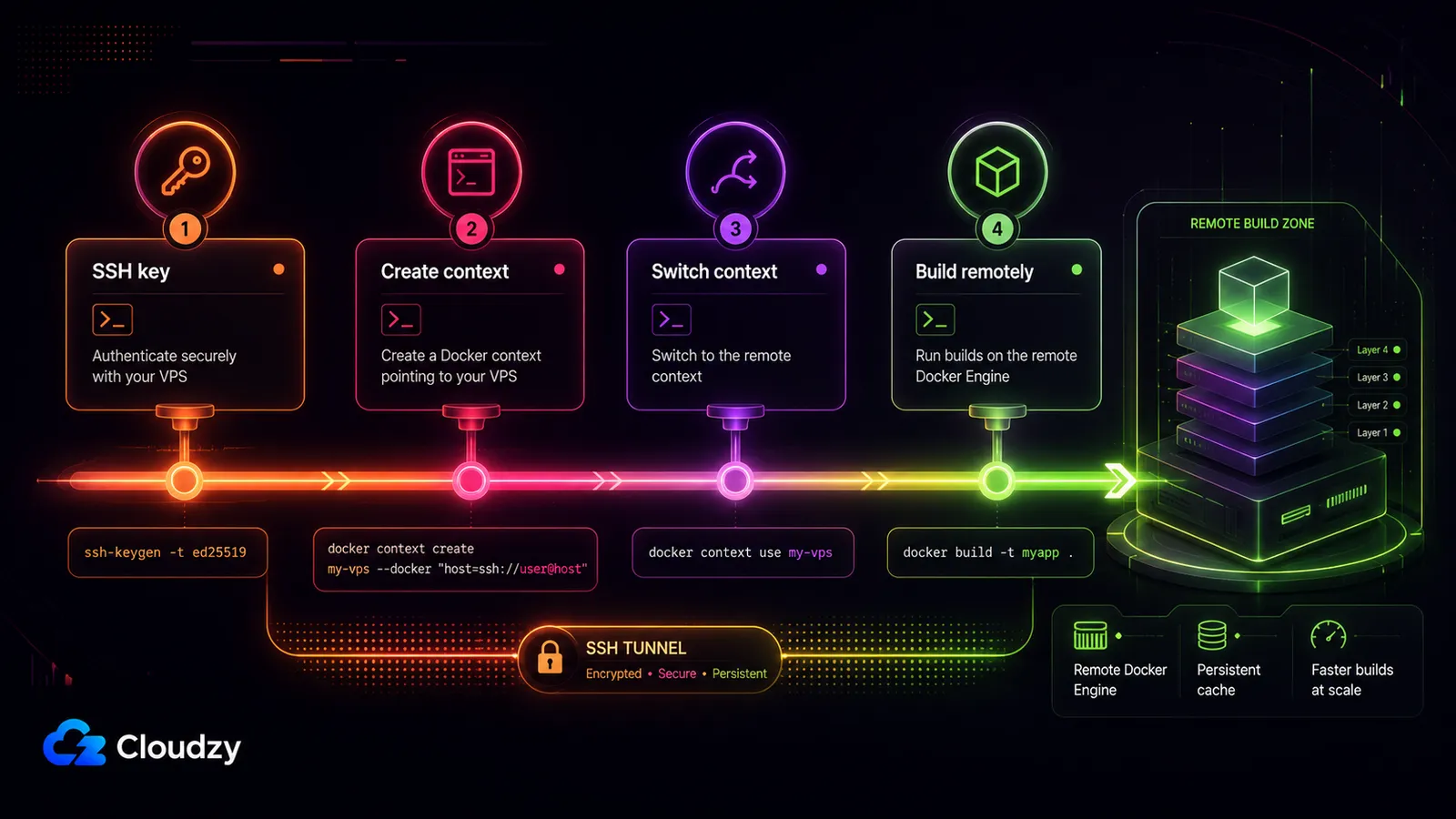
To build Docker images on a remote server over SSH, run Docker Engine on that server, create a docker context that points to it with docker context create name --docker "host=ssh://user@host", then run docker context use name. After that your normal docker build executes on the remote host, and the local CLI only sends instructions while the daemon does the work.
A context is a named, switchable target for the Docker CLI. Instead of juggling DOCKER_HOST env vars or hand-rolling an SSH tunnel every time, you define the remote once and switch to it like changing directories. The build runs entirely on the remote host: base-image pulls use the uplink of the VPS, layers cache on the disk of the VPS, and CPU work happens on the cores of the VPS. The only latency-sensitive steps are the initial SSH handshake and the upload of your build context. Everything after that is remote.
Setting Up Your VPS Build Box
The whole setup is four short commands plus an SSH config block. I'll show expected output where it helps you confirm each step landed.
Step 1: Get Docker Engine onto a Linux VPS. Provision the box and install Docker Engine (18.09+ on the remote is the floor for context SSH; your local CLI needs 19.03+). If you'd rather not run the install yourself, deploy a VPS that already ships with it (more on that below). The remote user needs to be in the docker group:
sudo usermod -aG docker $USER

# log out and back in for the group change to take effect
Step 2: Set up SSH key auth and a config alias. Key-based auth is required. Give the host a short alias in ~/.ssh/config so you don't retype the IP and key path:
# ~/.ssh/config
Host my-vps
  HostName 1.2.3.4
  User ubuntu
  IdentityFile ~/.ssh/id_ed25519
  IdentitiesOnly yes
Step 3: Create the context. Point it at the remote daemon over SSH. Use the raw form:
docker context create my-vps --docker "host=ssh://[email protected]"Or, using the SSH config alias from Step 2:
docker context create my-vps --docker "host=ssh://my-vps"Step 4: Verify. List your contexts and check the remote engine answers:
docker context ls

NAME        DESCRIPTION                               DOCKER ENDPOINT
default *   Current DOCKER_HOST based configuration   unix:///var/run/docker.sock
my-vps                                                ssh://my-vps

docker --context=my-vps version
If that prints the remote daemon's server version, your CLI is talking to the VPS.
Step 5: Switch and build. Make the VPS the active target, then build as normal:
docker context use my-vps

docker build -t myapp .
That build runs on the VPS. Prefer not to switch globally? Target a single command:
docker --context=my-vps build -t myapp .Or set it for the shell session:
export DOCKER_CONTEXT=my-vpsWhen you want your laptop's local daemon back (if you kept one), switch home:
docker context use defaultPro tip: mind your .dockerignore. The build context is uploaded to the remote host before the build starts. A stray node_modules or .git directory means you ship gigabytes over the wire on every run, and the remote path will feel slower than local for no good reason. A tight .dockerignore is the one thing that most affects whether the remote path feels fast: exclude dependencies, build artifacts, and VCS metadata, and the upload becomes a rounding error.
Multi-Arch Builds With a Remote buildx Driver
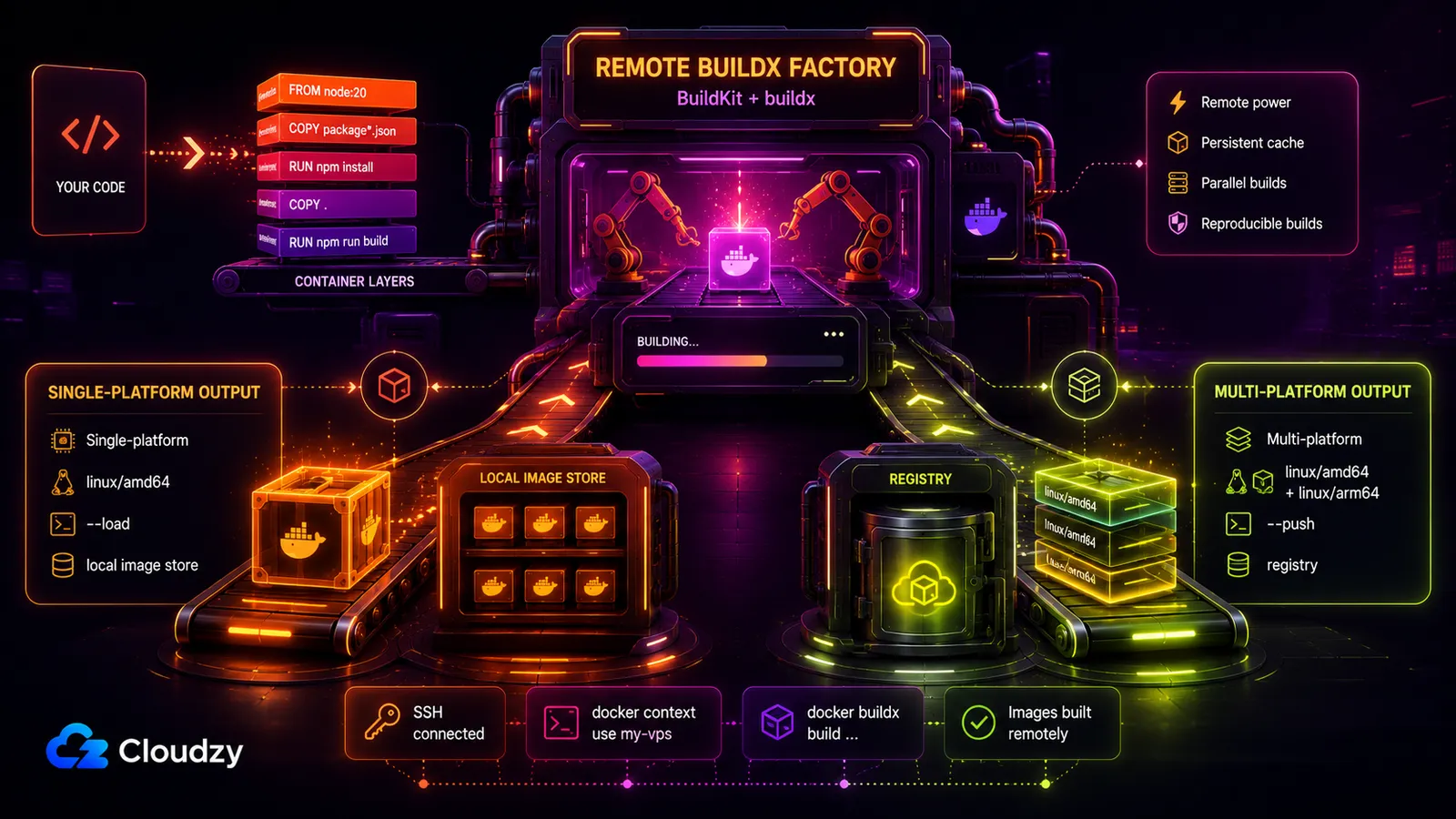
Create a buildx builder that runs BuildKit inside a container on the remote Docker host, then build against it:
docker buildx create --name remote-builder \
  --driver docker-container \
  --use \
  ssh://ubuntu@your-vps-ip

docker buildx inspect --bootstrap

docker buildx build \
  --builder remote-builder \
  --platform linux/amd64 \
  -t myapp:latest \
  --load .
The --load flag matters for single-platform local consumption: with the docker-container driver, built images do not automatically appear in your local image list. If you are building a true multi-platform image, push it to a registry instead:
docker buildx build \
  --builder remote-builder \
  --platform linux/amd64,linux/arm64 \
  -t registry.example.com/myapp:latest \
  --push .
That distinction is important. A single-platform remote build can be loaded back into your local image store. A multi-platform image is usually pushed to a registry, because it is a manifest list with separate variants for each target architecture. This section is optional: if all your images are single-arch, the context setup above is the whole job.
Sizing and Securing the Build Box
Two questions decide whether this box serves you well: how big to make it, and how to keep the daemon locked down. Docker builds are CPU-bound, so the sizing logic is mostly about cores and enough RAM to avoid swap. The security logic is mostly about not exposing the daemon to anyone but you.
What to Size It At
Give it generic specs. You can map these to whatever your provider offers.
- Floor (single dev, light builds): 2 vCPU / 4 GB RAM / ~120 GB NVMe. This is the minimum that works, not what I'd reach for.
- What I'd actually deploy (most teams): 4 vCPU / 8-12 GB RAM / 240-300 GB NVMe. Four vCPUs stop your parallel build steps from serializing, 8-12 GB handles concurrent builds without touching swap, and the NVMe headroom keeps a healthy layer cache.
- Team or heavy CI: 8 vCPU / 16-24 GB RAM for several developers sharing one box or big multi-stage Dockerfiles.
Because builds are CPU-bound, high-frequency (CPU-optimized) cores buy you faster iteration more than extra RAM does past the swap threshold. GPU plans are irrelevant here, since image builds don't touch the GPU. And datacenter choice affects only SSH responsiveness and context-upload time, not build speed: the build runs on the VPS regardless of where you're sitting, so pick a location close to you for a snappy handshake and move on.
Securing the Remote Daemon
The setup above already forces the right default: SSH key auth, no daemon port exposed to the network. Keep it that way. The moment you expose BuildKit or the daemon beyond SSH (a raw TCP endpoint, an open BuildKit port), you become a target. The Hacker News thread on slow builds that first raised the remote-VPS idea also warned about cryptomining attacks on exposed BuildKit endpoints. An unauthenticated build daemon on the open internet is a free compute buffet.
Pro tip: don't expose the daemon. If SSH-only is enough for you (it is for most single-box setups), never open a daemon TCP port at all. If you genuinely need TCP access, put mutual TLS (mTLS) in front of it so only clients with a valid certificate can connect. SSH-only or mTLS: there is no acceptable third option for a build box reachable from the internet.
Once the box is up, it's a general-purpose Linux server, and there's plenty else worth running on it. Our self-hosted stack for indie hackers guide is a reasonable next read for what else earns a place on your VPS.
If you'd rather skip the Docker Engine install and go straight to docker context create, our Docker marketplace app deploys a VPS with Docker Engine, Compose V2, and buildx already configured. One click and the box is SSH-ready, so the walkthrough above starts at Step 2 instead of Step 1.
Frequently Asked Questions
Can I Run Docker Builds on a Remote Server and Use My Local CLI?
Yes. Run Docker Engine on the remote host, create a docker context pointing at it over SSH, and switch to that context. Your local docker build then executes on the remote server while the CLI on your machine only orchestrates, with no local daemon required.
What's the Difference Between docker context and DOCKER_HOST?
A docker context is a named, switchable, persistent target you define once and select with docker context use. DOCKER_HOST is a single environment variable you set and unset manually for each shell. Context is the modern replacement for the old tunnel-plus-env-var approach.
Does docker compose Work With a Remote Context?
Yes. Compose V2 respects the active Docker context, so docker compose commands run against whichever host the context points to. The services and any image builds execute on the remote host, same as a plain docker build.
What Is Docker Offload and Is It Free?
Docker Offload is the managed remote build/run service from Docker for moving container work to Docker-managed cloud hosts while keeping the Docker Desktop workflow. Current Docker docs list it as requiring Docker Desktop 4.68 or later, plus Docker Business and Docker Offload subscriptions. It is also session-based: each user gets one Offload session at a time, idle sessions terminate after a 5-minute grace period, and the remote environment is ephemeral.
How Do I Stop Docker Desktop From Using So Much Memory?
Tuning the resource limits of Docker Desktop only shrinks a footprint that never goes to zero, because the VM always has a floor. The path that actually removes the memory cost is to remove the local daemon entirely: run Docker Engine on a VPS and connect via docker context over SSH, so nothing but the CLI runs on your machine.
Can I Do This With Podman Instead?
You can. Podman is available as a Docker-compatible engine, and docker context can point at a remote Podman host, but that requires Podman to expose its Docker-compatible socket over SSH. The command flow is the same. The setup on the remote side differs.
Discussion
Comments
Sign in to join the discussion.