
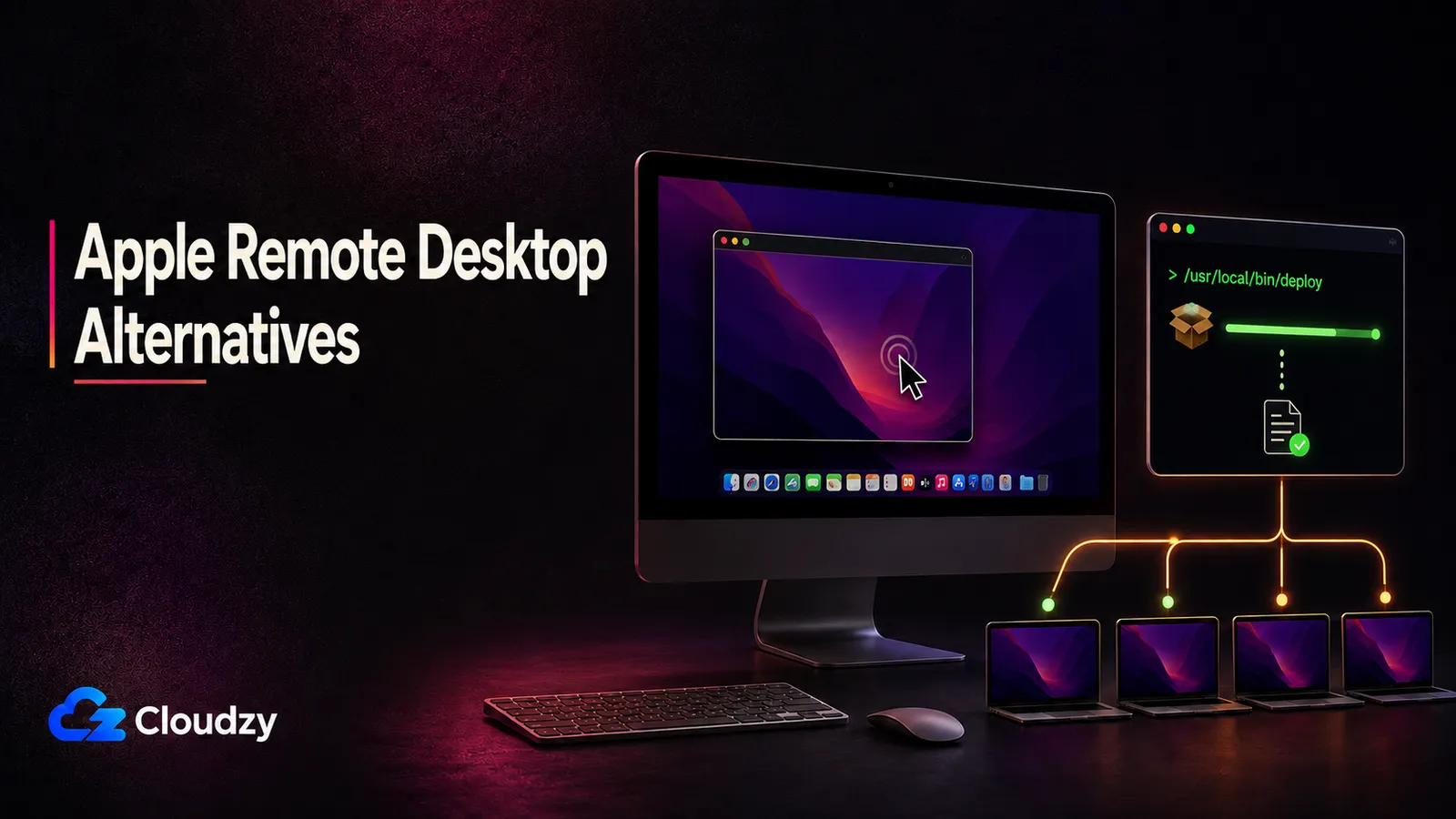
Apple Remote Desktop does two jobs. It puts a remote Mac's screen on your display, and it runs operations across a list of Macs at once: shell commands, package installs, inventory reports.
Apple Remote Desktop alternatives are easy to find for the first job. The second is the one that is hard to replace. If you control three Macs, this is a short decision. If you inherited a couple of hundred and no MDM, the shortlist you need looks nothing like a remote desktop roundup.
TL;DR
- Apple Remote Desktop is not abandoned. Version 3.10 shipped in October 2025 and still sells as a one-time purchase. The current administrator app requires macOS Sequoia 15.5 or later, but that does not make 15.5 the minimum for every Mac you manage.
- Split your requirement before you shop. Screen control and fleet operations are separate capability layers, even though some vendors sell parts of both.
- Most of the screen-control tools below do not replace Apple Remote Desktop's full management bundle. ScreenConnect overlaps directly with Send UNIX Command, and TeamViewer sells separate management features, but commands, package deployment, and inventory still need to be evaluated separately from screen access.
- macOS ships Screen Sharing at no cost. It covers the screen-control half on its own and pairs with an overlay network for machines off the LAN.
- Several commercial options bill on an annual commitment, which is the number that matters when you compare against a one-time license.
- Macs outside the LAN need some form of reachability: NAT port forwarding, a VPN or overlay network, a vendor-hosted connection service, or infrastructure you run yourself. Apple Remote Desktop supports NAT port forwarding but does not provide the automatic NAT traversal of modern remote-access services.
Which Apple Remote Desktop Functions You Need to Replace
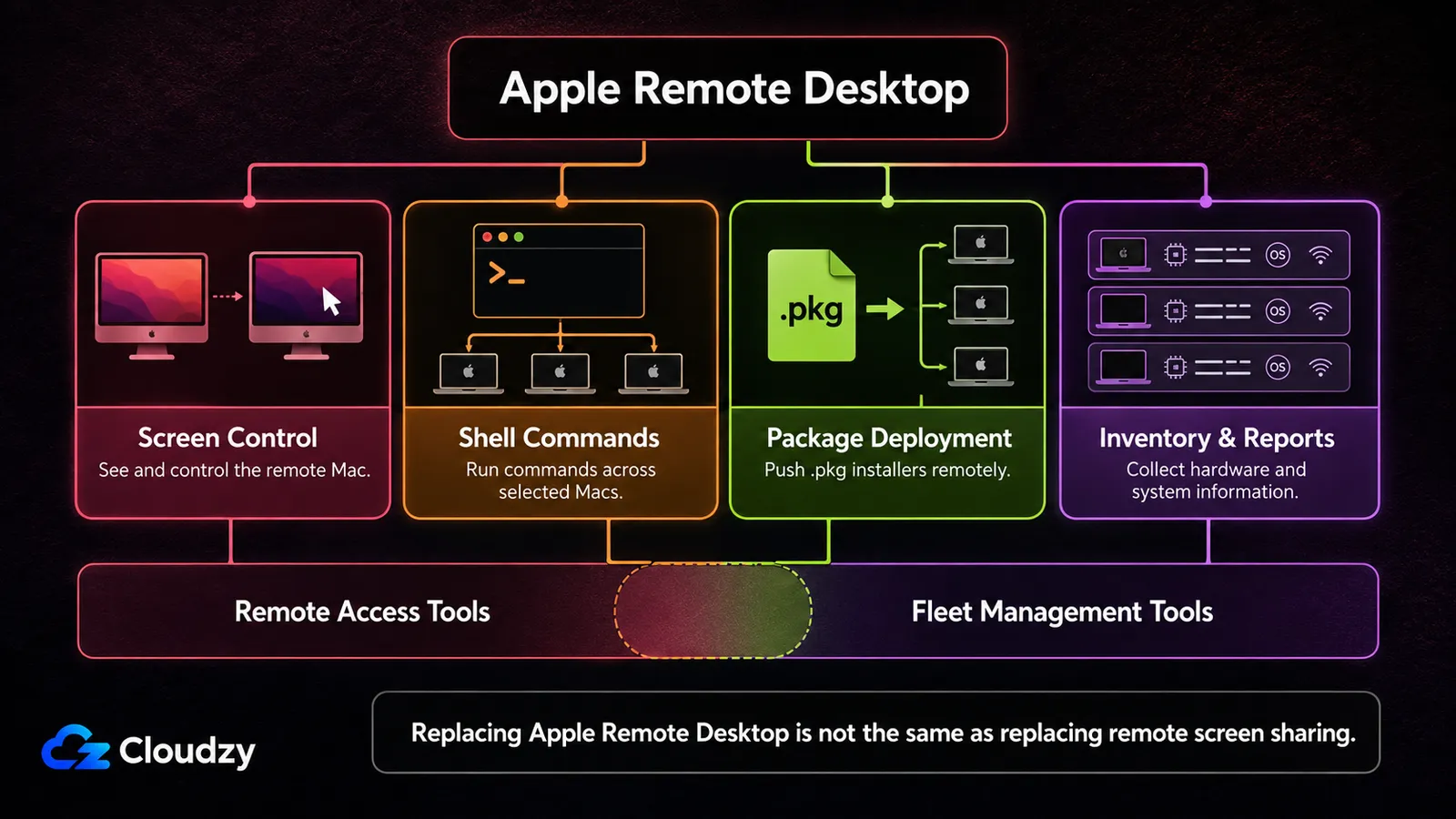
Three of the four things you use Apple Remote Desktop for are not screen sharing. Send UNIX Command executes a shell command on every selected Mac as any user, including root, Install Package pushes a signed .pkg with no user interaction, and Reports collect client hardware usage data, including serial numbers and network interfaces. Screen control is the fourth.
Those first three are configuration management, and they are why the tool survived in fleets long after its interface stopped feeling current. Screen control is the other half: watching a user's session, taking over to fix something, driving a headless Mac mini in a rack. Every product in the comparison below competes for that half, and so does the Screen Sharing service already built into every Mac.
So route yourself first. If you only take over screens, you are shopping in a crowded market with free and paid options. If you run commands, push packages, and collect inventory, check those functions individually. A few remote-access products now overlap with management, but none should be assumed to reproduce Apple Remote Desktop's whole workflow from the screen-control license alone.
Key takeaway: Separate screen access from commands, software deployment, and inventory before you compare products. The categories overlap at the edges, but they are not interchangeable.
Where Apple Remote Desktop Stands Today
Apple Remote Desktop is current. Version 3.10 shipped in October 2025, still sells for a one-time $79.99, and the administrator app requires macOS 15.5 or later. Apple's release notes also record macOS Tahoe 26 compatibility.
The important distinction is which Mac that requirement applies to. The current administrator app needs 15.5 or later, but Apple's Remote Desktop guide still lists OS X 10.10.5 or later for Mac computers and Remote Desktop client 3.6 or later for full control. Older managed Macs therefore do not automatically force a migration. An older controller Mac can.
If your controller Mac is current, your existing clients remain supported, and Send UNIX Command still does what you need, replacing Apple Remote Desktop purely because of the 3.10 requirement may solve nothing. The stronger reasons to move are off-network access, modern identity and auditing requirements, or a broader device-management migration.
How the Apple Remote Desktop Alternatives Compare
The split that matters is not feature depth, it is billing. Apple Remote Desktop is a one-time purchase; most of the alternatives below are annual commitments priced per user, per device, or per concurrent connection. The table focuses on the remote-access offering shown for each vendor. Some vendors add command execution, software deployment, inventory, or other management functions through higher tiers or separate products, so those capabilities need to be evaluated separately from the listed price.
| Tool | Published macOS Floor | Plan / Price Shown | Billing Basis | Where It Fits |
|---|---|---|---|---|
| Apple Remote Desktop | Admin app: macOS 15.5+; clients: OS X 10.10.5+ | $79.99 | One-time purchase | Reachable Mac fleets that need shell and package operations |
| macOS Screen Sharing | Ships with macOS | Free | n/a | Built-in screen access, LAN or overlay |
| TeamViewer | macOS 13 Ventura | Business, from $50.90/month | Annual subscription | Organizations that want vendor support contracts |
| AnyDesk | macOS 11 Big Sur | Solo, from $28.90/month list | Annual commitment | Fast interactive sessions, single admin |
| Chrome Remote Desktop | Browser-delivered | Free | n/a | Occasional access, no compliance requirement |
| RealVNC | macOS 12 Monterey | Essentials, 1 user, 1 session | Subscription | VNC-standard estates, mixed platforms |
| RustDesk | Not published | Free, self-hosted | Free OSS / paid annual license | Admins who want to own the relay |
| Splashtop | macOS 10.13 | Solo, from $6/month | Billed annually, from $72/year | Low-cost access to one or two Macs |
| ScreenConnect (ConnectWise) | macOS 10.12 Sierra | One, from $30/month | Annual only at this tier | Service providers supporting many clients |
| Zoho Assist | macOS 11 Big Sur, technician | Free for 1 technician | Monthly or annual | Helpdesk-shaped support work |
Each floor above comes from the vendor's own system-requirements page; RustDesk publishes no minimum at all. Prices are the vendors' published US list prices as of September 2026 and change often, so confirm them before you buy. A published floor is not a tested-against ceiling, so check macOS 26 Tahoe compatibility before you commit a fleet.
The Screen-Control Replacements
Eight products centered on putting a remote Mac's screen in front of you and letting you drive it. Some now bolt on scripting, inventory, patching, or other management functions, so the line is not perfectly clean. What matters is whether those extras reproduce the Apple Remote Desktop operations you use, and what you have to buy to get them.
TeamViewer
TeamViewer solves procurement as much as technology. It is the option a finance or compliance function already recognizes, and it carries vendor support that the free and open-source options do not. It no longer belongs in a pure screen-control bucket, though. TeamViewer Remote Management adds monitoring, asset inventory, patch and software deployment, and remote scripting.
There is still an important Mac limitation. TeamViewer's current documentation says macOS-compatible scripts can run individually or during a session, while bulk script execution is Windows-only. That gives it management overlap without making it a clean Send UNIX Command replacement across a Mac fleet. TeamViewer's US pricing page lists Business from $50.90 per month, billed yearly; larger arrangements still go through sales.
AnyDesk
AnyDesk targets interactive sessions where perceived latency is what annoys you: a user on a call, a screen you are driving by hand. It ships a native macOS client and its own transport protocol. AnyDesk's pricing page opens at Solo, from $28.90 per month at list price, billed annually. AnyDesk sells on annual subscriptions, with no monthly billing option.
AnyDesk is primarily a screen-control product, not an Apple fleet-management platform. Its published macOS command-line tooling handles installation and configuration of the AnyDesk client itself; it is not the equivalent of Send UNIX Command across a selected fleet. The broader shell-command, package-deployment, and inventory jobs therefore still need another management path.
Chrome Remote Desktop
Free, browser-delivered, and quick to stand up. For a Mac you touch once a month, it removes the procurement question entirely. The limits are structural: a standard deployment offers no recording and no role-based access, and access is tied to Google accounts. Google Workspace administrators can control who may use Chrome Remote Desktop, but that is different from the richer session auditing and access-management model of a dedicated enterprise support platform.
If your threat model includes proving after the fact who connected to which machine and when, this is not the tool. If it does not, the price is correct.
RealVNC
RealVNC's argument is protocol familiarity. If your estate already speaks VNC across Macs, Linux boxes, and embedded devices, one VNC-native client sits in front of all of them. RealVNC's pricing page opens at Essentials, which RealVNC's own help center describes as one user with one session at a time. Higher tiers add users and concurrent sessions, and that model scales badly at fleet size.
VNC has no concept of pushing a package to a list of machines, so the management half is untouched by anything in the plan structure.
RustDesk
RustDesk is the open-source option here built around running the connection infrastructure yourself. The client is AGPL-3.0, and the server side is two binaries: hbbs for identity and connection brokering, hbbr for relay. Both are open source and free to run.
The distinction that catches people is the paid tier. Server Pro is proprietary, and RustDesk's pricing page puts the web console, address book and audit log behind it, with LDAP and OIDC integration a tier above that. An admin who adopted RustDesk specifically to get audit trails without a paid Pro license will not get them from the free server. Screen control and relay only, with no fleet operations behind either.
Splashtop
Splashtop's pricing page lists the entry Remote Access Solo plan from $6 per month, billed annually, but it covers only two computers. For a fleet, Splashtop Remote Support is the more relevant product because its support licenses include managed-computer capacity rather than treating one Solo seat as access to an unlimited estate.
Splashtop also crosses into Apple Remote Desktop's management half on its higher-end support and endpoint-management offerings. Scripts & Tasks, which needs a Remote Support license, can run or schedule shell scripts and script or executable files across multiple Macs at once. So the entry Solo tier is screen access, while the broader Splashtop product line reaches into software deployment and fleet automation.
ScreenConnect (ConnectWise)
ConnectWise renamed this product back to ScreenConnect in 2023, reversing an earlier rebrand, and version numbering is now year-based. It is built for service providers supporting many separate customer environments, with the session management and access control that implies. The entry tier starts from $30 per month, annual billing only.
ScreenConnect also crosses the line into one Apple Remote Desktop function. Its Commands feature runs shell commands on macOS, and the Host page can send one command to multiple selected machines at once. The entry One plan does not include Remote Command Line; Standard does, from $45 per month when billed annually. That makes ScreenConnect a partial Send UNIX Command alternative, although it still is not a one-for-one replacement for Apple Remote Desktop's package and reporting workflow.
It also carries a security record that belongs in the decision. ConnectWise's trust center records a May 28, 2025 Security Event Advisory describing suspicious activity tied to a nation-state actor that affected a small number of ScreenConnect cloud customers. Before that, CVE-2025-3935, a ViewState code-injection path exploitable once machine keys are compromised, was patched in April 2025 and is now listed in CISA's Known Exploited Vulnerabilities catalog. In March 2026 the vendor disclosed CVE-2026-3564, scored CVSS 9.0, in which earlier versions stored machine keys in config files where an attacker could extract and reuse them for session authentication. Every release before 26.1 is affected. Remote access software is a high-value target, but if you self-host this one, patching is not optional. None of that changes the buying question: ScreenConnect covers screen access and some remote command execution, while broader software deployment and inventory still need separate evaluation.
Zoho Assist
Zoho Assist is shaped like a helpdesk tool: a technician starts a session against a user who needs help. That shape suits support desks better than fleet automation, although higher paid tiers now include Remote Script Execution. Its free tier is more useful than most, covering one technician, five unattended computers and a single concurrent session.
For a small estate where one person occasionally connects to a handful of machines, that is a working answer at no cost. Paid tiers are priced per technician.
What Replaces Apple Remote Desktop's Management Functions
No entry-level screen-control plan above should be assumed to reproduce Apple Remote Desktop's whole management bundle. There is overlap, though: ScreenConnect can run commands across selected Macs, TeamViewer sells separate management capabilities, Splashtop adds scripting and software deployment through its endpoint-management offering, and Zoho Assist includes remote script execution on higher tiers. Check the exact function you are trying to preserve instead of treating every remote-access vendor as screen-only.
If you are replacing the management layer itself, Apple-focused platforms such as Jamf Pro, Mosyle, Kandji, and Addigy are the more direct category to evaluate. Apple's device-management framework handles enrollment, profiles, app deployment, restrictions, and policy delivery; management vendors can layer additional agents and services on top for scripting, inventory, remediation, and other fleet operations. Munki remains the open-source option here for package distribution.
Say the cost jump out loud. Discovering it in month three is worse. Apple Remote Desktop is a one-time $79.99 purchase for the administrator. The management tier is a per-device subscription, and Jamf publishes no public price at all, routing buyers to a quote. Budget an annual recurring line item sized by device count.
If MDM is genuinely unavailable to you, there is a floor case. Munki plus a repository you host yourself distributes packages without an MDM server, and shell execution can be handled by a configuration management agent you install and manage. Both require you to run infrastructure, and neither gives you point-and-click selection of a list of machines.
Key takeaway: Screen control and device management are separate capability layers. If you use Apple Remote Desktop for both jobs, evaluate both when you replace it, even if one vendor can cover parts of each.
Reaching Macs Outside the LAN
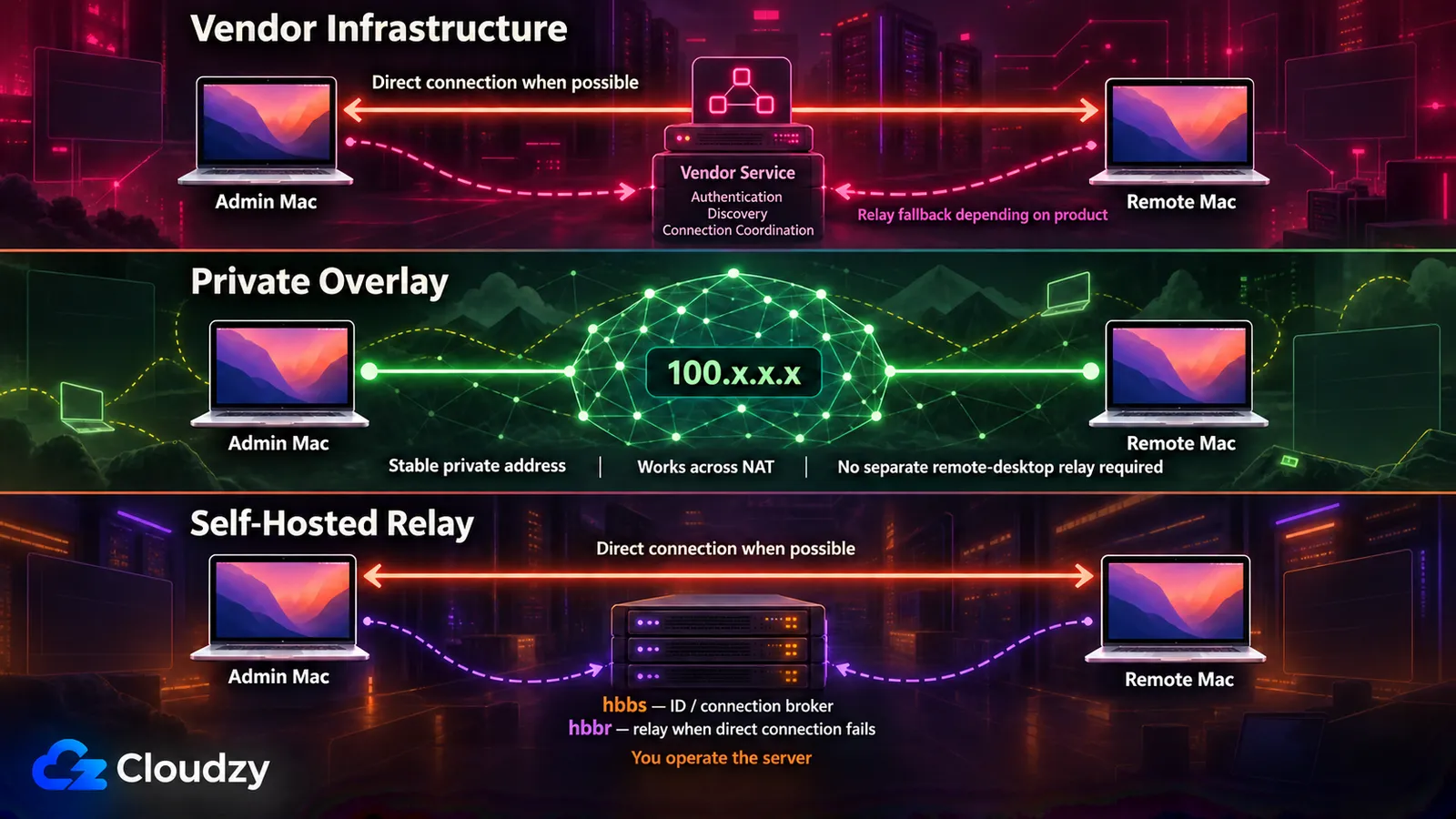
Apple Remote Desktop expects the machines to be reachable; it does not provide the automatic NAT traversal of a typical commercial remote-access service. NAT itself is not a hard stop. Apple documents forwarding unique TCP and UDP port pairs to clients behind a NAT router, but that becomes awkward quickly when you manage multiple Macs across home, office, and customer networks.
The first approach is vendor-hosted connection infrastructure. Commercial remote-access tools generally use the vendor's services for authentication, discovery, or connection brokering, but that does not mean every session's traffic passes through a vendor relay. Some products establish direct peer-to-peer paths when the network allows it and fall back to relays when it does not. If the data path matters to your threat model, check the vendor's connection architecture rather than assuming every cloud-managed session is relayed.
The second approach is an overlay network. Tailscale or ZeroTier install an agent on each Mac and give every machine a stable private address regardless of where it sits. macOS Screen Sharing then connects to that address exactly as it would on a LAN. This pairing can remove the need for a separate remote-desktop license, although the overlay itself may carry a business cost. Check the provider's commercial plan and device limits before treating the network layer as free. It also adds an agent to manage on every machine.
The third approach is to run the relay yourself. RustDesk is built for it: hbbs handles identity and connection brokering, while hbbr carries relayed sessions when a direct connection is not available. That matters for capacity planning because a session that connects directly does not consume the relay path.
That relay needs somewhere to live, and a small always-on Linux server with a public address is enough infrastructure for a modest deployment. You still need to expose the required RustDesk ports and point the clients at your ID server and public key. Any provider will do; if you'd rather not build the host by hand, Cloudzy's one-click RustDesk VPS sets up the server side on a VPS you keep root access to. The point is the relay, not the provider.
The macOS Permissions You Need to Plan For
Unattended access breaks on permissions as often as it does on networking. A connected session with no usable picture or input can be a macOS Transparency, Consent, and Control (TCC) permission problem, so test the exact agent and macOS release before a machine leaves your hands.
Three permissions commonly matter: Screen & System Audio Recording, Accessibility, and, for agents that need protected user data, Full Disk Access. Screen recording lets a remote-control app capture the display. Accessibility is commonly used for keyboard and mouse control. Full Disk Access is broader and should be granted only when the vendor documents a reason for it.
Device management reduces the manual work, but do not treat all three permissions as silently pre-approvable. Apple's Privacy Preferences Policy Control payload can manage Accessibility and System Policy All Files for specified applications, while Apple's documented Screen Recording control is more restrictive. The exact behavior also depends on how the remote-access vendor implements its agent.
Without device management, plan for local user interaction when the remote-control app requests permissions that macOS does not allow you to approve silently. Do this during staging rather than discovering it after the Mac is already somewhere else.
One recent change is worth watching if your tooling runs as a background helper. On the Apple Developer Forums, a developer reports that under macOS Tahoe 26.1 a background Unix executable no longer appears in the Screen Recording list after it requests access, and that adding it by hand grants the permission without making it visible, so nobody can verify or revoke it. The same is reported for Full Disk Access, and it worked in 26.0.1. Test one machine on Tahoe before you upgrade the fleet.
Choosing by What You Manage
Fleet size and function decide this, not job title. A handful of Macs with screen control as the only requirement, buy nothing. Ten to fifty with screen control only, the plan's device allowance and technician count decide the cost. Twenty to two hundred with commands, packages, and inventory in the mix, you are replacing two capability layers, and management is usually where the larger recurring cost appears.
One to three Macs, screen control only. Stop here. Turn on Screen Sharing in System Settings and connect from the Screen Sharing app; it's built into macOS and costs nothing. Add Tailscale or ZeroTier if the Macs are not on one network. Buy nothing until this configuration has failed you for a specific, nameable reason.
Ten to fifty Macs, screen control only, one or two admins. The entry Splashtop Solo tier is not the fleet plan; it covers only two computers. For dozens of Macs, compare Splashtop Remote Support with the other managed-endpoint options based on device allowance and technician count. If you want to run the connection infrastructure yourself instead, RustDesk Server OSS is the cleaner fit.
Twenty to two hundred Macs, screen control plus commands, packages, and inventory. You need both capability layers: device management for fleet operations and interactive screen control. They may come from two products or from a broader suite, but evaluate them separately. Keep Apple Remote Desktop where it still works for you if your controller Mac meets the current requirement. Budget the management layer as a recurring per-device cost, and evaluate Mosyle, Kandji, and Addigy alongside Jamf instead of defaulting to the market leader.
Supporting multiple separate client organizations. ScreenConnect is built for this shape, with the caveat about patch discipline from its section above. Zoho Assist fits if your work is ticket-driven support rather than infrastructure administration.
No MDM available, and it isn't going to be. Munki with a self-hosted repository handles package distribution. Pair it with the screen-control option that fits your environment. ScreenConnect can recover selected-machine command execution, while Splashtop's higher management offerings can run scripts across multiple endpoints. What you will not reproduce neatly is Apple Remote Desktop's exact combination of screen control, commands, package deployment, and inventory in one Apple tool.
Frequently Asked Questions
What Is the Difference Between Remote Management and Screen Sharing in macOS System Settings?
They enable different services. Screen Sharing turns on macOS's VNC-based screen access, which any standard VNC client can connect to. Remote Management is the toggle Apple Remote Desktop needs: Apple's Remote Desktop guide says you must enable it to manage a client computer, and it is what carries Send UNIX Command, package installation, and reporting. macOS will not run Screen Sharing and Remote Management at the same time, and Remote Management already includes screen control. If you only need to see the screen, Screen Sharing is the setting you want.
What Replaces Apple Remote Desktop's Send UNIX Command at Fleet Scale?
It depends on how closely you need to reproduce Apple Remote Desktop. ScreenConnect can run a command against multiple selected Macs, so it overlaps directly with Send UNIX Command. Broader Apple management platforms such as Jamf Pro, Mosyle, Kandji, and Addigy are the better fit when command execution is only one part of a larger requirement that also includes software deployment, configuration, inventory, and policy management.
Can I Manage a Mac Fleet Remotely Without MDM?
Partly. Package distribution works without MDM using Munki and a repository you host, while screen control works with the tools above. ScreenConnect and some higher-end remote-management products can also recover fleet command execution. The harder gap is centralized macOS policy and privacy-permission management, where MDM is considerably cleaner. A small fleet can absorb more manual setup; the operational burden grows as the number of Macs rises.
Which macOS Permissions Does a Remote Desktop Tool Need?
Three permissions commonly matter. Screen & System Audio Recording lets the tool capture the display. Accessibility lets it send keyboard and mouse input. Full Disk Access is needed only when the agent must read protected user data, so grant it only when the vendor documents a reason. With device management, some permissions can be managed through policy while others remain more restrictive. Plan and test the required approvals before deployment instead of assuming every permission can be silently pre-granted.
Do I Need a Paid Tool to Control One or Two Macs?
No. macOS Screen Sharing is built in and free, and it covers two Macs on the same network. If the two Macs sit on different networks, an overlay network can give them a shared private address and Screen Sharing connects as normal. Check the overlay provider's license before using a free plan for a business fleet.
Discussion
Comments
Sign in to join the discussion.